
Appearance
Session Recovery
Otty remembers what you had open. Closed tabs come back, crashed windows restore.
Reopen Closed
| Action | Binding |
|---|---|
| Reopen the last closed tab, pane, or window | ⇧⌘T |
| Browse recent sessions & folders | File → Open Recent… |
⇧⌘T walks back through whatever you closed most recently — a single split pane, a whole tab, or an entire window — restoring it into the window it came from. History persists across app launches: Otty keeps your last 12 closed items, and Open Recent separately lists your 10 most recent sessions and folders.
Recover session when start Otty
Otty restores your previous session automatically — there's no "do you want to restore?" dialog. What you get on launch depends on how the last session ended:
- After a clean quit — governed by the
on-launchsetting. With the defaulton-launch = restore_session, every window from your last session reopens with its tabs, splits, working directories, and scrollback. Seton-launch = new_windowto always start with one empty window instead. - After a crash or force-quit — Otty always restores the last snapshot, regardless of
on-launch. Snapshots are written continuously (see Crash recovery), so you land within seconds of where you were. If Otty crashes repeatedly on launch, it stops auto-restoring after a few attempts and starts fresh to break the loop. - After an in-place update — relaunching from an update always restores, so updating never costs you your layout.
Config what to recover
How much of a pane comes back — a live multiplexer session, a coding-agent transcript, the command it was running — is up to you, under Settings → Shell → Session Restore:
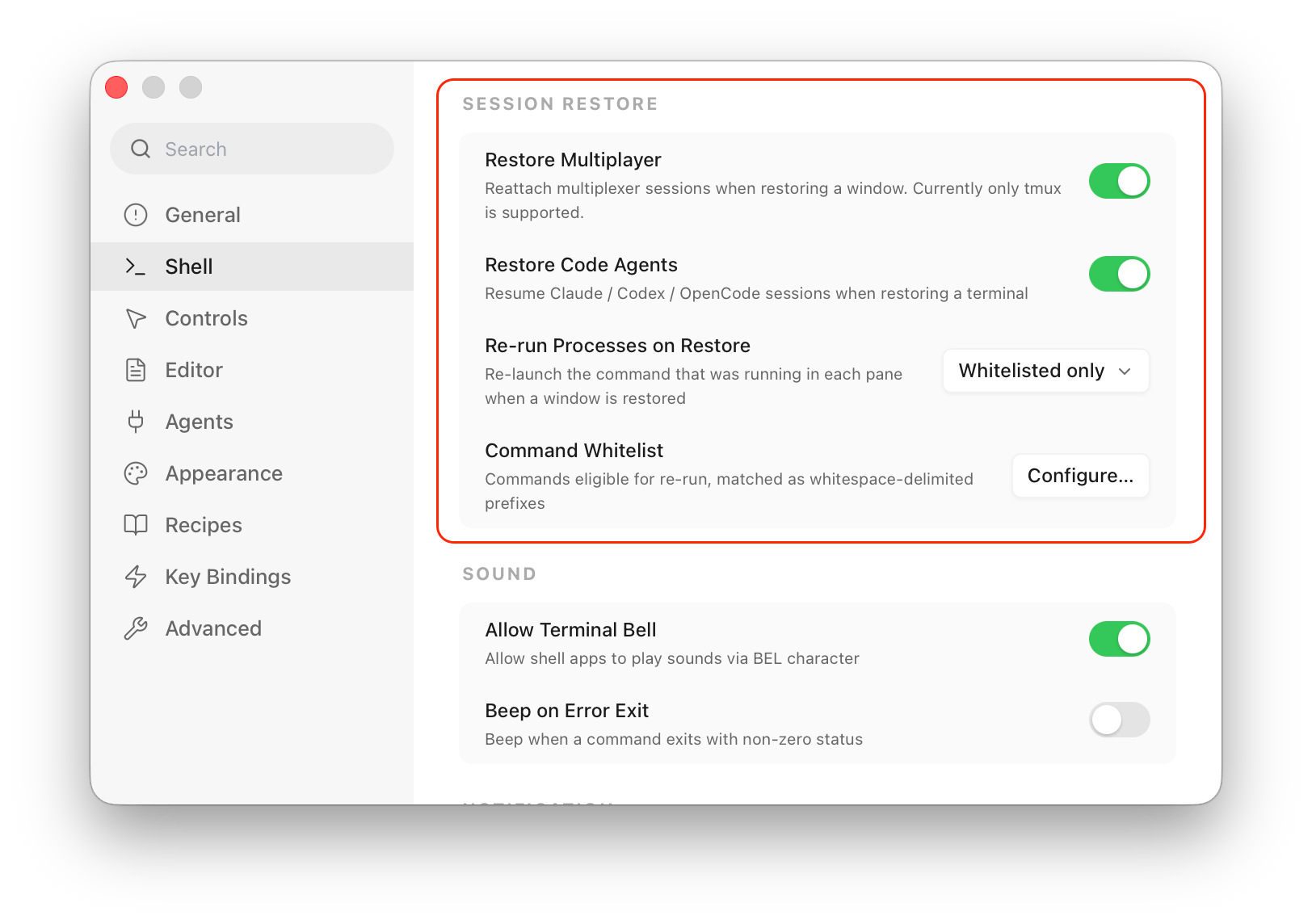
| Option | What restoring brings back |
|---|---|
| Restore Multiplayer | Reattaches a multiplexer session (tmux today) instead of opening a fresh shell, so its windows and panes come back live. On by default. |
| Restore Code Agents | Resumes the Claude / Codex / OpenCode session the pane was running, rather than dropping you at a plain prompt. On by default. |
| Re-run Processes on Restore | Whether the command a pane was running is re-launched — see below. |
Re-running commands
By default a restored pane returns as a clean shell: the split layout and working directory come back, but nothing runs on its own. The Re-run Processes on Restore dropdown decides what — if anything — Otty re-launches:
| Choice | What happens |
|---|---|
| None (default) | Nothing is re-run — just the shell and its directory. |
| Whitelisted only | A command is re-run only if it matches your Command Whitelist. |
| All running processes | Every pane re-launches whatever it was running. |
Choosing Whitelisted only reveals a Command Whitelist row; click Configure… to edit the list. Entries match as whitespace-delimited prefixes — npm run dev also covers npm run dev --port 3000 — so you can whitelist the long-running commands you trust to relaunch (dev servers, file watchers) while leaving one-shot or destructive commands off.
Custom agent commands
Otty normally resumes an agent with its standard CLI command, such as claude --resume <id>. If you launch an agent through a wrapper or with global flags, open Settings → Integrations, expand that agent, and set Launch command. Otty uses the configured prefix for new launches, resume, and fork, then appends the agent's native session arguments.
For example, set Claude Code's launch command to:
text
claude --dangerously-skip-permissionsThe resulting recovery command is claude --dangerously-skip-permissions --resume <id>. Leave the field empty to use the built-in command. The equivalent config-file form is:
ini
agent-command = claude=claude --dangerously-skip-permissionsCrash recovery
If Otty exits unexpectedly, the next launch offers to restore your open windows from the last known snapshot. Snapshots are written whenever a tab is created, closed, or its layout changes — so at worst you lose seconds of state.
Recipes vs recovery
Recovery is automatic and short-term. Recipes are intentional, portable, and can include command replay.
See also
- Recipes
- Configuration Reference —
on-launch,session-restore-processes,session-log-mode, etc.