
Appearance
Files, Folder and Links
📸 TL;DR
- Paths and URLs in terminal output are interactive — you can open them by command + click, or from context menu.
- Otty has built-in text editor, file previewer and web browser. You can also edit or preview directly in otty's tab or in split views.
- No path on screen?
⌘⇧Othen⌘Pfinds a file by name, and that list's last row hands the same query to a content search.
Path and Links in Terminal Output
What gets detected
In live terminal output and scrollback, Otty detects:
- Absolute paths:
/usr/local/bin/foo,/Users/me/project - Tilde paths:
~/project/file.swift - Relative paths:
./src/lib.rs,../config/foo.toml - Paths with line / column suffixes:
src/lib.rs:42,src/lib.rs:42:5 - URLs:
http://,https://,file:// - OSC 8 hyperlinks emitted by programs — see Shell Integration
Relative paths resolve against the pane's last-known working directory (from OSC 7).
You can press command key to get clickable path and links being wrapped by underline.
Click actions
| Click | Path action | URL action |
|---|---|---|
Click | (nothing — prevents accidental opens) | (nothing) |
⌘click | Open in best handler — file pane for text, default app otherwise | Open in URL pane (or system browser, per config) |
⌘⇧click | Reveal in Finder | Copy URL |
| Right-click | Context menu — "Open With…", "Copy Path", "Reveal" | "Copy", "Open in Browser" |
Browsing images. When you ⌘-click an image path and it opens in Otty, press ← / → to show the previous / next image that terminal printed, in the same tab — handy for flipping through the screenshots a coding agent just took. The list covers the terminal's scrollback too, and starts from the one you clicked.
Other Actions
Right-click a detected path or URL for a context menu. The items depend on what you clicked.
- Open Link / Open File / Open Folder — open it with default behavior (configured in Settings → Controls → Open With).
- Open with — a submenu of installed apps.
- Copy Path / Copy URL — copy the resolved absolute path.
- Reveal in Finder.
- Change Directory Here —
cdthe focused terminal to the path (or its parent folder). - Open in Otty — a submenu to open the target in the current pane, a new tab, or a split.
Quick Preview
- You can press command and hover on links and paths to check its full path in left bottom area.
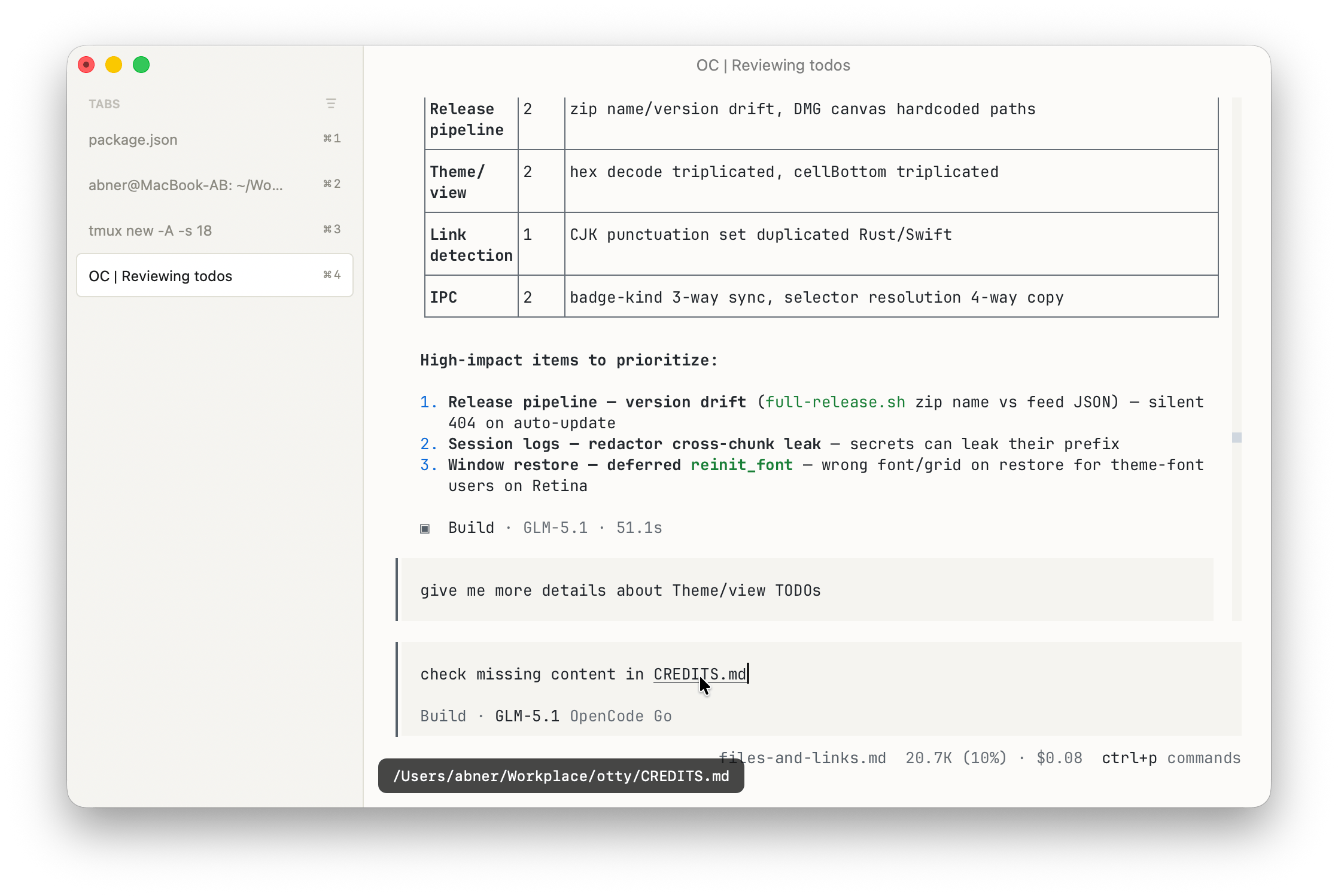
- You can use macOS lookup to quickly preview file content or target url link.
Handle Paths and URLs without mouse
You can use following keyboard-only equivalent to interact with clickable Paths and Links:
Jump To
These actions are also reachable without the mouse. Press ⌘J to open the jump-to panel — an Open Quickly view scoped to the current pane, listing its paths, links, and commands. Type to filter, then press ⌘K to open the Actions popover for the highlighted item, which offers the same set of actions as the right-click menu.
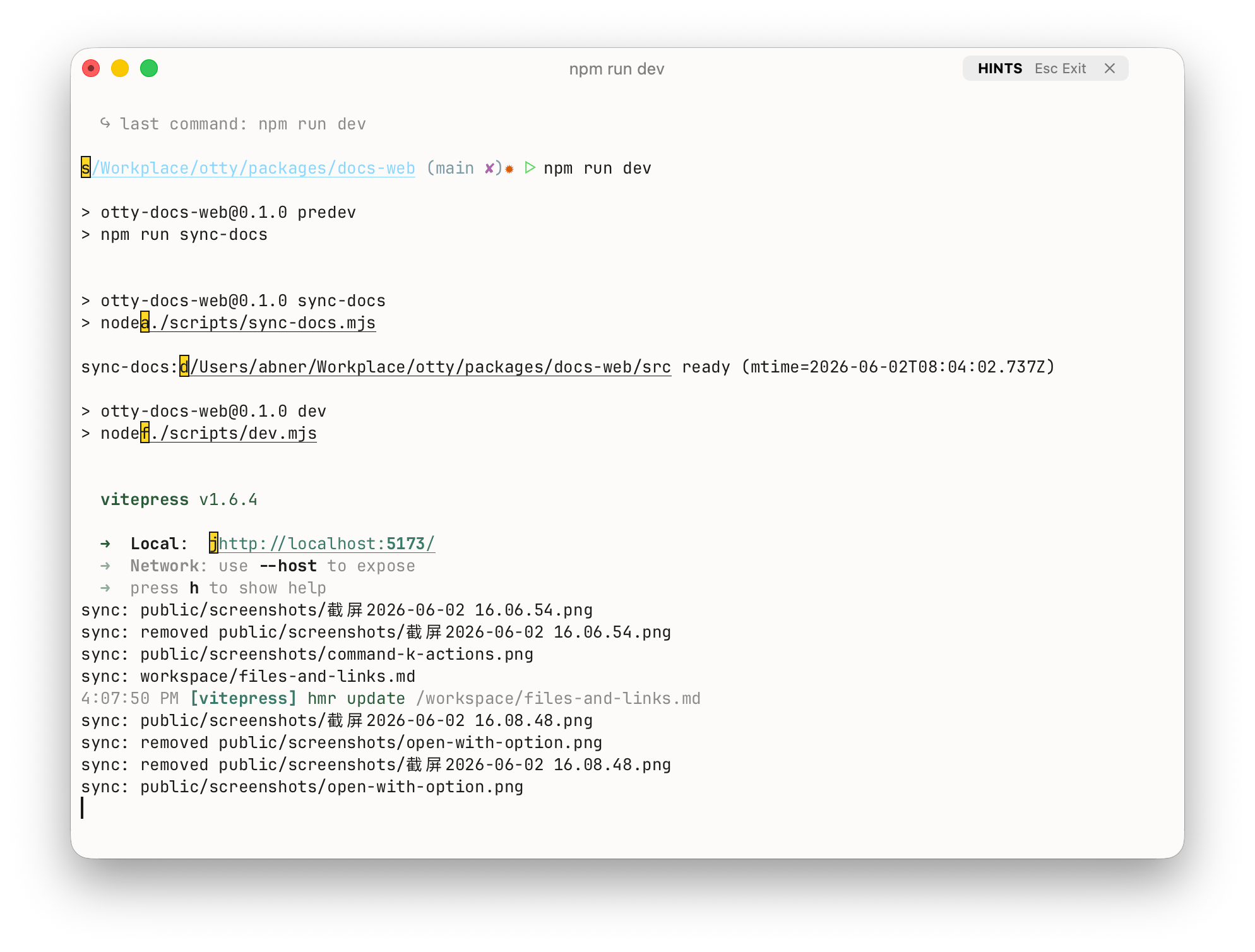
Hint Mode
Hint Mode is also a keyboard-only equivalent — open any detected link without the mouse.
Hint Mode (Open Links)
Inline Images
See Images.
Finding a file that isn't on screen
Everything above starts from a path the terminal already printed. When there isn't one — you know roughly what the file is called, or only what's inside it — two finders cover the gap, and both open into the same file pane.
By name — Open Quickly ▸ Files

View ▸ Open Files Quickly goes straight there, or open the picker with ⌘⇧O and press ⌘P to switch to the Files filter — the files under the focused pane's working folder, most recently modified first. Type to narrow by name or path, ↩ opens the highlighted file exactly as ⌘-clicking its path would, and ⌘K offers Preview, Open in Default App, Open in Otty (current pane / new tab / split), Reveal in Finder and Copy Path.
Files also appear in the default All list, but only its top few matches — so the Files filter is what you want when you are looking for a file specifically.
In a Git repository the list is what git considers part of the tree, so ignored build output never appears. Anywhere else Otty walks the folder itself and skips hidden files and the usual heavyweights (node_modules, target, build, …). Either way the scan runs off the main thread — the panel opens immediately and the group fills in behind it.
Open Quickly covers the other filters.
By content — Search in Files

When the name isn't what you remember, search what's inside the files:
- View ▸ Search Across Files — opens an empty search on the focused pane's folder, ready for you to type into.
- The last row of Open Quickly's Files group: Search “…” in file contents — carries over what you had already typed.
- Search Files, beside Search in Current Tab, in Find in All Tabs (
⇧⌘F) — likewise.
You land in an ordinary tab — split it, drag it, close it like any other. Given the width it shows two columns: results on the left, the matching file on the right with syntax highlighting, ↑ / ↓ walking the hits while the preview follows. Narrower, it's just the list, and clicking a result opens the file at the line. Otty bundles ripgrep, so .gitignore rules are respected and nothing needs installing.
Search in Files has the details — the folder it captures, the glob filters, and the limits.
File Pane / Editor
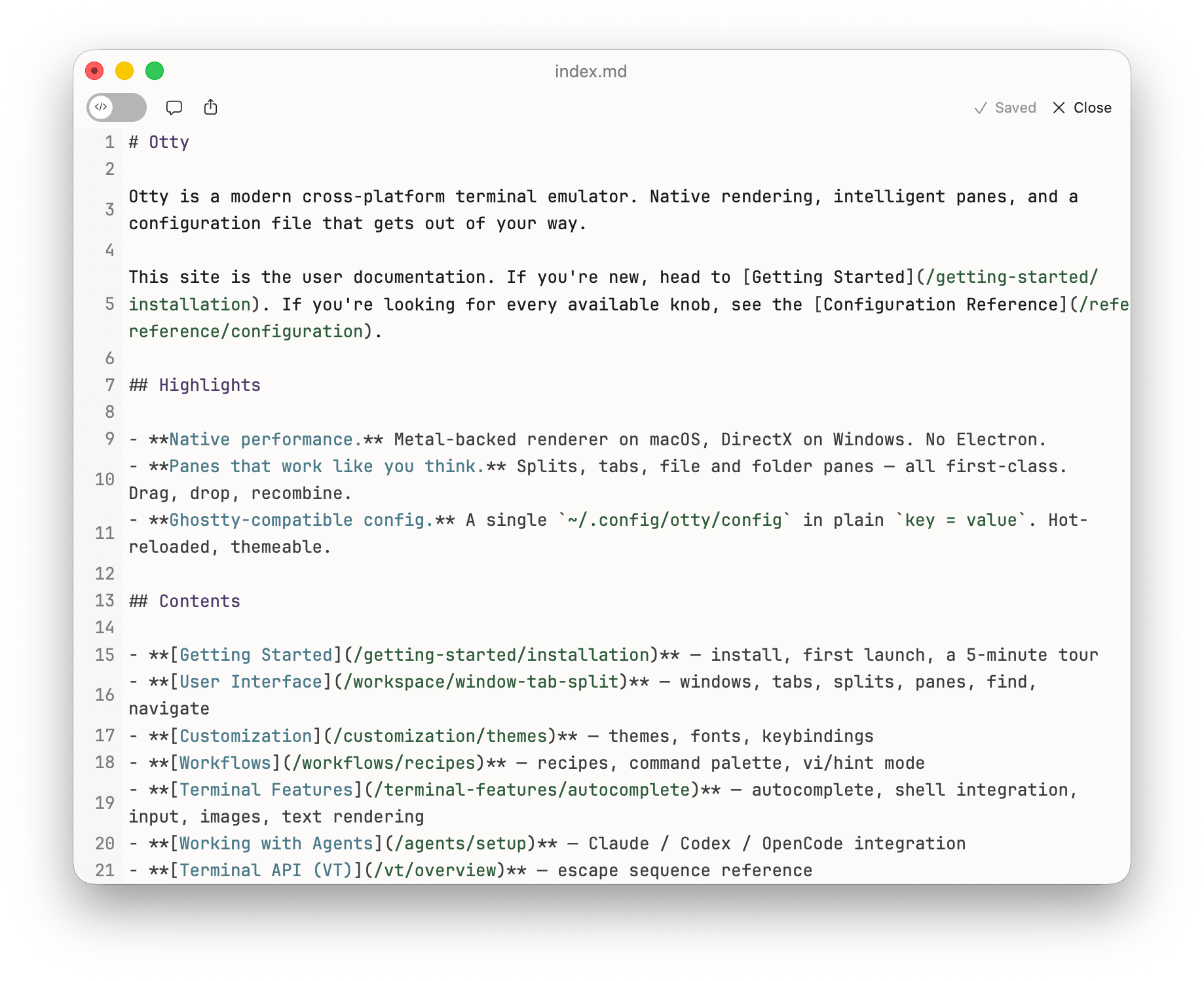
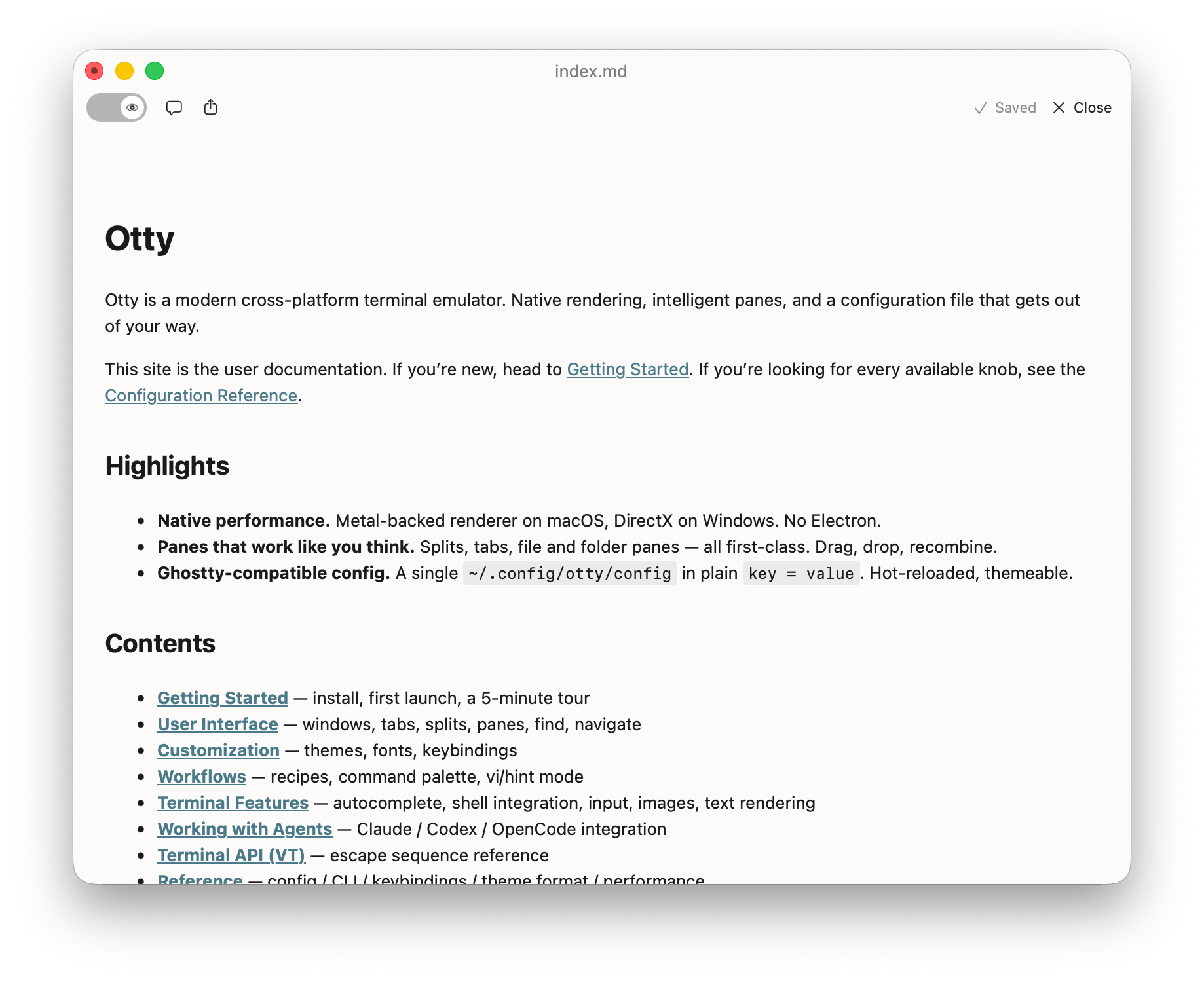
Otty has the capability to open and preview common file types. It also embeds a text editor to quickly check and edit code files.
Opening a file
| Way | Result |
|---|---|
| Drag a file from Finder onto the window's "New Tab" drag zone | New file pane in a new tab |
| Context menu → Open in Otty | View pane in the Otty |
otty view <file> | Open <file> in preview / readonly mode |
otty edit <file> | Open <file> in edit mode |
Syntax highlighting
Highlighting is powered by syntect (Sublime / TextMate grammars). Language detection is by file extension, with a small fallback to first-line shebang. The active theme follows the terminal theme — see Themes.
Saving and reloading
⌘S— save (Edit mode).⌘R— reload from disk, discarding unsaved changes.- Files modified outside Otty trigger a banner: Reload / Keep my changes.
Supported Files
Otty picks how to show a file from its extension (with a content sniff as a fallback, so unknown-but-textual files still open in the editor). Expand the sections below to see what's covered.
Markup with live preview (Source ⇄ Preview)
These formats open with both a source view and a rendered preview, and you can flip between them with the Source / Preview control in the pane toolbar, ⌘E, or right-click → Toggle Preview:
| Format | Extensions | Rendered as |
|---|---|---|
| Markdown | .md, .markdown | GitHub-flavored HTML; fenced code blocks are syntax-highlighted and follow the terminal theme, and ```mermaid blocks are drawn as diagrams |
| reStructuredText | .rst, .rest | HTML |
| SVG | .svg | Live image with trackpad pinch-to-zoom |
| HTML | .html, .htm | Rendered locally (JavaScript is off for these for safety) |
These open in preview mode by default. Edits on the source side refresh the preview as you type, and switching sides keeps your cursor and unsaved changes.
Mermaid diagrams. A fenced block tagged mermaid in a Markdown file is drawn as a picture — flowcharts, sequence diagrams, class and state diagrams, pie charts, Gantt charts and the rest — coloured from your terminal theme. Everything is rendered on your machine: no diagram, and nothing else in a preview, is ever sent anywhere. A block that does not parse stays visible as its own source, so you can see what to fix.
Linux
The Linux app draws diagrams natively rather than in a web view, and covers flowcharts, sequence diagrams and pie charts. Other diagram types stay as readable source blocks there, labelled with the kind they are.
Syntax-highlighted languages
Highlighting covers ~120 bundled grammars. A few of the languages recognized:
- Systems / compiled — Rust, C, C++, Objective-C / Objective-C++, C#, Go, Zig, D, Pascal, Fortran, Ada, Swift, ARM & x86 Assembly, Verilog, WGSL
- JavaScript & web — JavaScript (+ Babel), TypeScript / TSX, CoffeeScript, LiveScript, Dart, Elm, Vue, HTML (+ Twig), CSS, Less, Stylus, QML, Slim, ActionScript
- JVM — Java, Kotlin, Scala, Groovy
- Functional — Haskell, OCaml, F#, Erlang, Elixir, Clojure, Lisp, Scheme, Racket, Standard ML, Lean
- Scripting & dynamic — Python, Ruby, PHP, Perl, Lua, R, Julia, Crystal, Nim, MATLAB, Tcl, AppleScript
- Shell & build — Shell (bash / zsh), Fish, PowerShell, Batch, Makefile, CMake, Ninja, Dockerfile, Terraform, Nix, Robot Framework, Gnuplot
- Data & config — JSON, JSON Lines, YAML, TOML, XML, INI,
.env, Java Properties, Apache conf, Cabal, Protocol Buffers, GraphQL, Rego, SQL - Markup & docs — Markdown, reStructuredText, AsciiDoc, Textile, Org Mode, LaTeX, BibTeX
- Other — Diff / patch, regular expressions
Language is detected by extension (with a shebang fallback). When an extension is ambiguous (.m → Objective-C, .h → C, .v → Verilog, .pl → Perl), pick the right one from the language dropdown in the toolbar; choose Auto-detect to undo the override.
Other file types
| Kind | Extensions | Behavior |
|---|---|---|
| Images | .png, .jpg/.jpeg, .gif, .webp, .heic/.heif, .bmp, .tiff/.tif, .ico | Zoom (⌘+ / ⌘- / fit / 1:1), drag to pan, animated GIF / APNG play; ← / → step through the other images in the terminal it was opened from |
| PDF & rich docs | .pdf, video, office docs, fonts, … | Quick Look preview (read-only); PageUp / PageDown to page a PDF |
| Diff / patch | .diff, .patch | Unified diff with colored hunks (read-only) |
| Binary | anything non-textual | Opens as a read-only hex view |
Plain-text files with no dedicated grammar still open in the editor — you get the toolbar, shortcuts, and terminal-matching theme, just without highlighting.
Agent session history
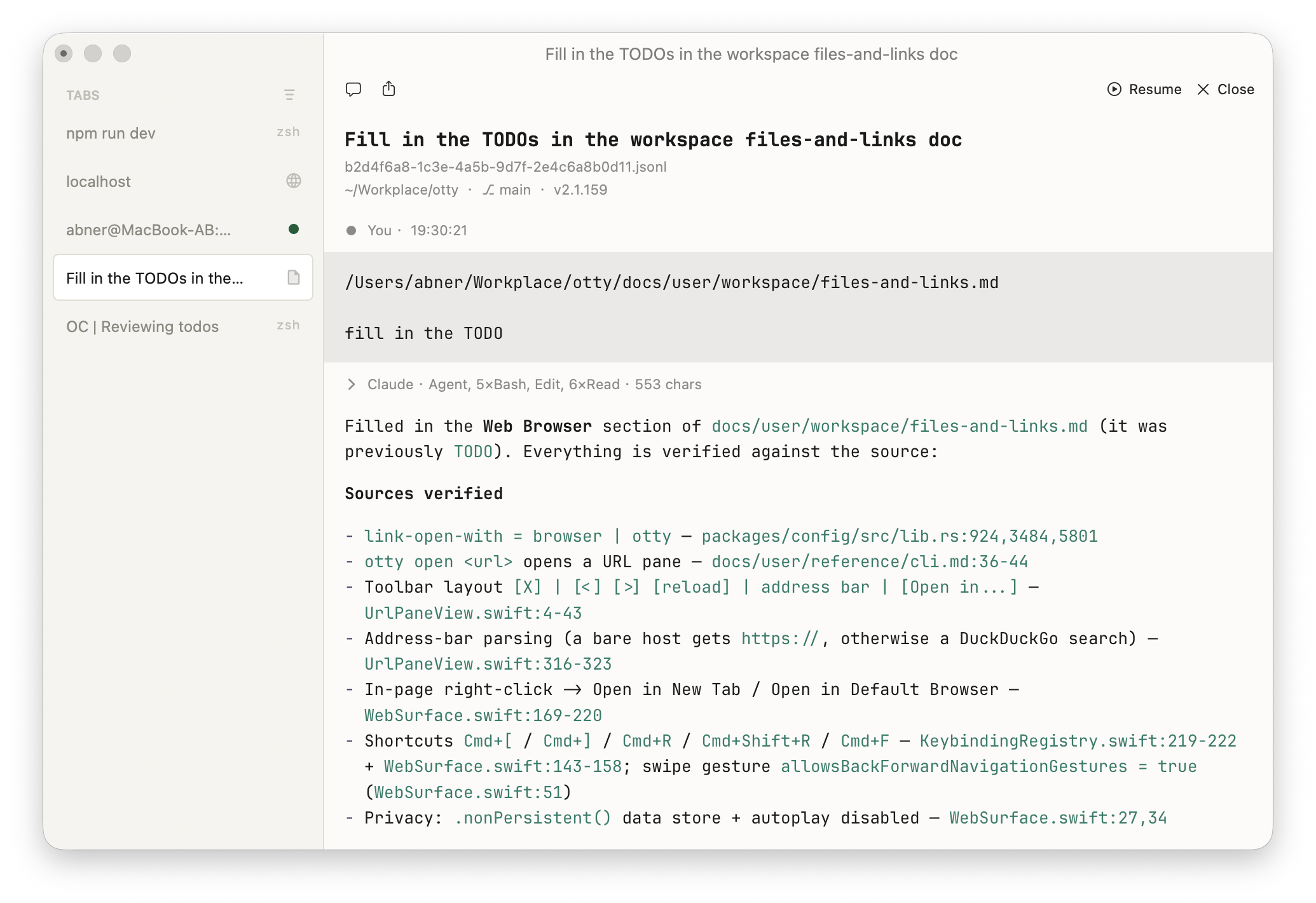
Coding-agent session logs render as a readable transcript instead of raw JSON. Otty recognizes these agents by their session paths:
| Agent | Session files |
|---|---|
| Claude Code | ~/.claude/projects/<project>/*.jsonl |
| Codex | ~/.codex/sessions/YYYY/MM/DD/*.jsonl |
| OpenCode | ~/.local/share/opencode/storage/session/<project>/*.json |
| Cursor CLI | ~/.cursor/projects/<project>/agent-transcripts/<chat>/<chat>.jsonl |
| Kimi Code | ~/.kimi-code/sessions/wd_<project>/session_<id>/agents/<name>/wire.jsonl |
| Pi / omp | ~/.pi/agent/sessions/<project>/*.jsonl (omp: ~/.omp/...) |
The transcript lays out user and assistant turns with Markdown-rendered text, tool calls, reasoning, and attachments — you can select and Copy or Send to Chat from the context menu. A Resume button in the toolbar continues that session: it jumps to the live tab if it's still running, otherwise spawns a fresh one with the agent's --resume.
- Open one from Open Quickly — it lists the current project's sessions across every supported agent — or just open the file.
- Toggle the view with right-click → View as → <Agent> History ⇄ JSONL (Syntax Highlight) to drop back to the raw log.
Only session files under a known agent's directory auto-open as a transcript; any other .jsonl stays plain text.
Editor Configuration
The editor follows your terminal theme and font automatically — there's no separate editor font setting. Everything else lives under Settings → Editor:
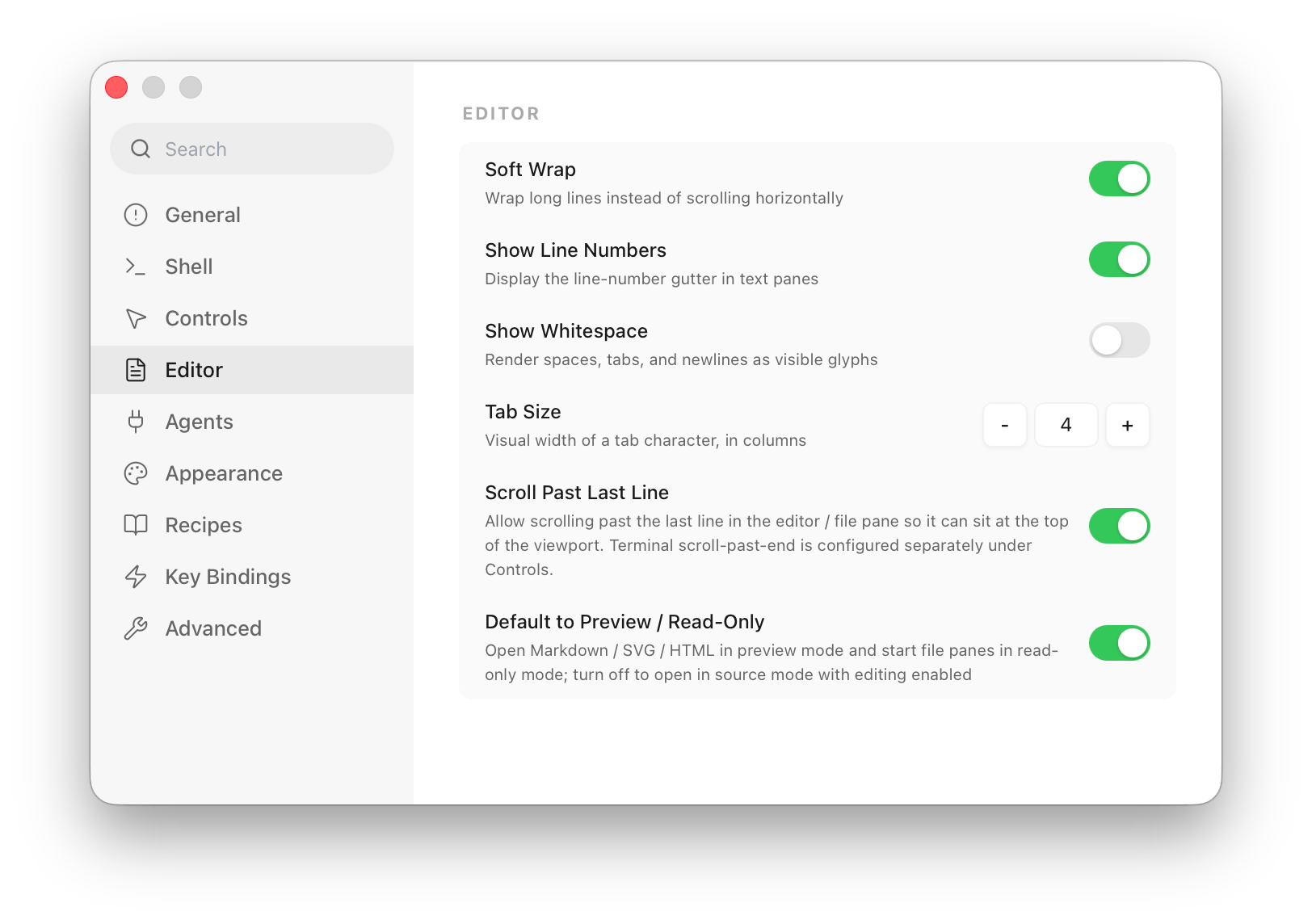
| Setting | Default | What it does |
|---|---|---|
| Soft Wrap | On | Wrap long lines instead of scrolling horizontally |
| Show Line Numbers | On | Display the line-number gutter in text panes |
| Show Whitespace | Off | Render spaces, tabs, and newlines as visible glyphs |
| Tab Size | 4 | Visual width of a tab character, in columns (1–16) |
| Scroll Past Last Line | On | Let the file pane scroll past its last line so it can sit at the top of the viewport (the terminal's own scroll-past-end is set separately under Controls) |
| Default to Preview / Read-Only | On | Open Markdown / SVG / HTML in preview and start file panes read-only — turn it off to open in source mode with editing enabled |
These apply to every file pane. To override a couple of them just for the pane you're in, without changing the defaults:
| Shortcut | Action |
|---|---|
⌘⌥W | Toggle soft wrap for the focused pane |
⌘E | Toggle Source / Preview (Markdown / SVG / HTML) |
Limits
- File panes are designed for text up to a few MB. Very large files fall back to a streamed view (no in-place edit).
- Binary files open as hex (read-only).
Folder Pane
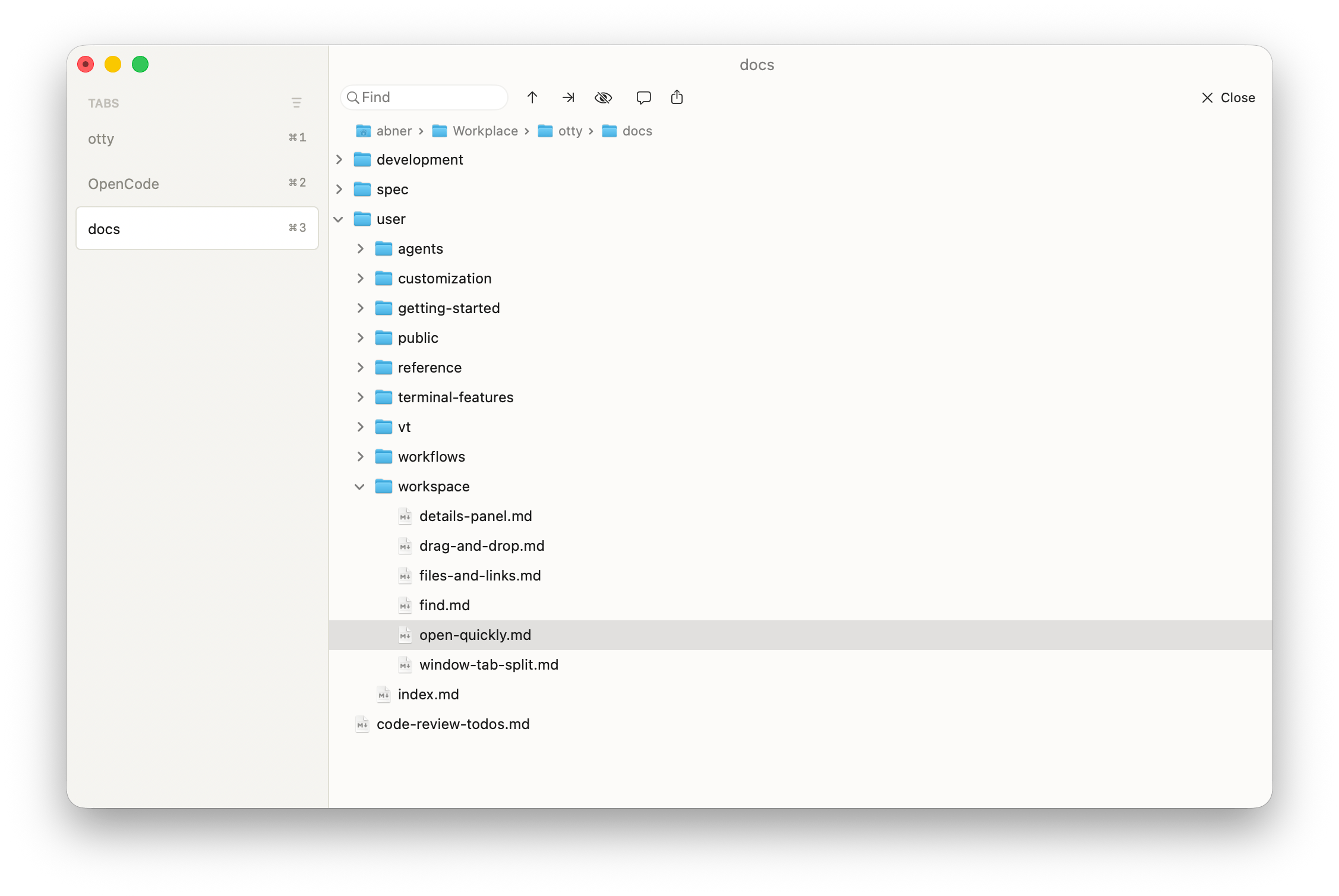
A folder pane is a directory browser — click to open files, drag rows out to move them into terminal or file panes. otty view <dir> or right click a folder and select open in Otty opens a folder pane.
Web Browser
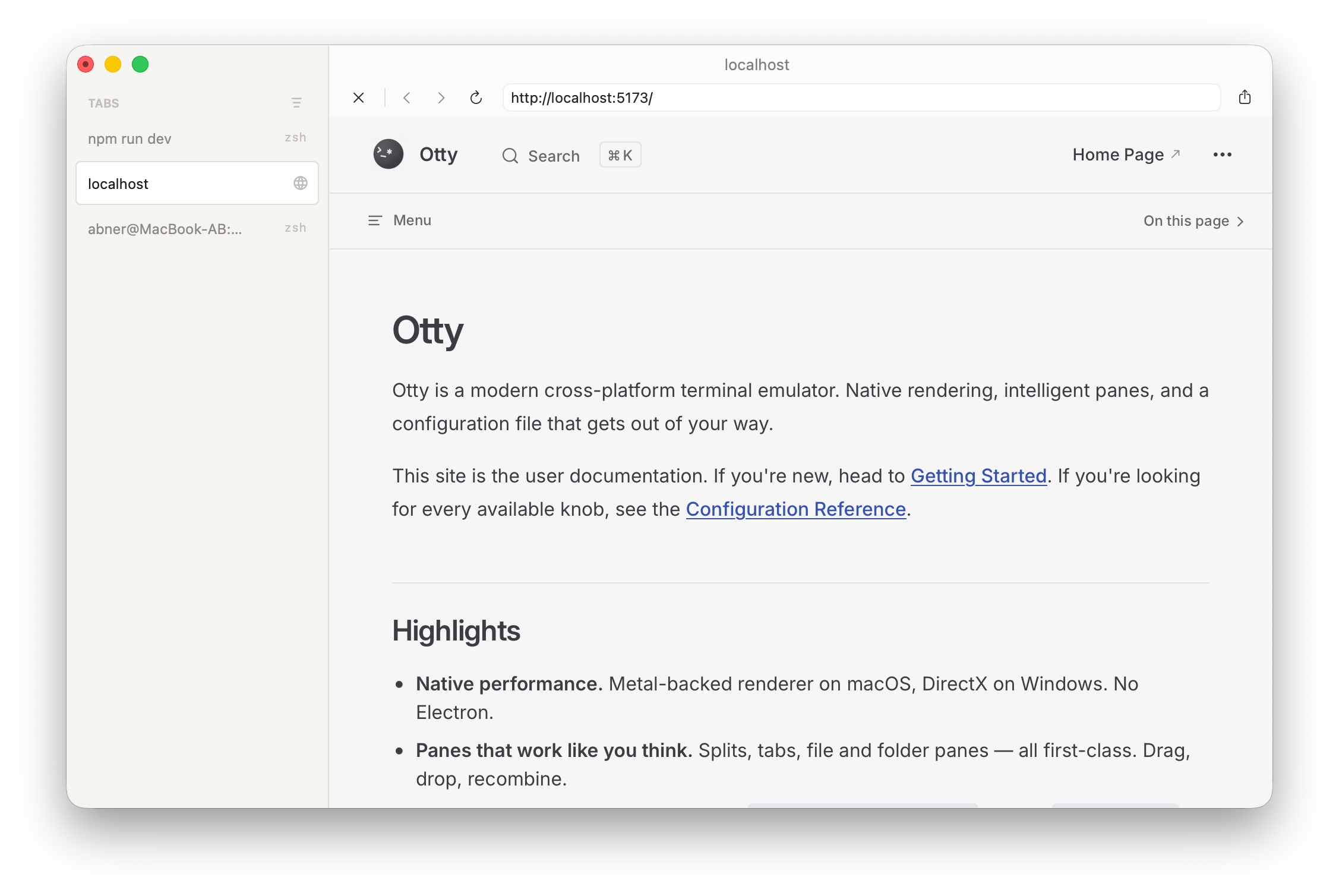
Otty has a built-in web browser (a native WebView pane, backed by WKWebView), so a link from your terminal can be opened right next to your work — in the current pane, a new tab, or a split — instead of pulling you out to Safari or Chrome.
You could config the default handler for http(s) links, by default it is opened by your default web browser, and you can open in Otty from its context menu. You could also change default handler to Otty, so command + click will open links directly in your terminal.
Keyboard
| Shortcut | Action |
|---|---|
⌘[ / ⌘] | Back / Forward (two-finger swipe also works) |
⌘R | Reload |
⌘⇧R | Reload, bypassing the cache |
⌘F | Find in page |
Private by default
URL panes use a non-persistent data store — cookies and local storage never bleed across panes or survive a restart. Audio and video won't autoplay until you interact with the page.
Configuration
Default Open App
You can config default options for opening files, folders and links from Settings → Controls → Open With:
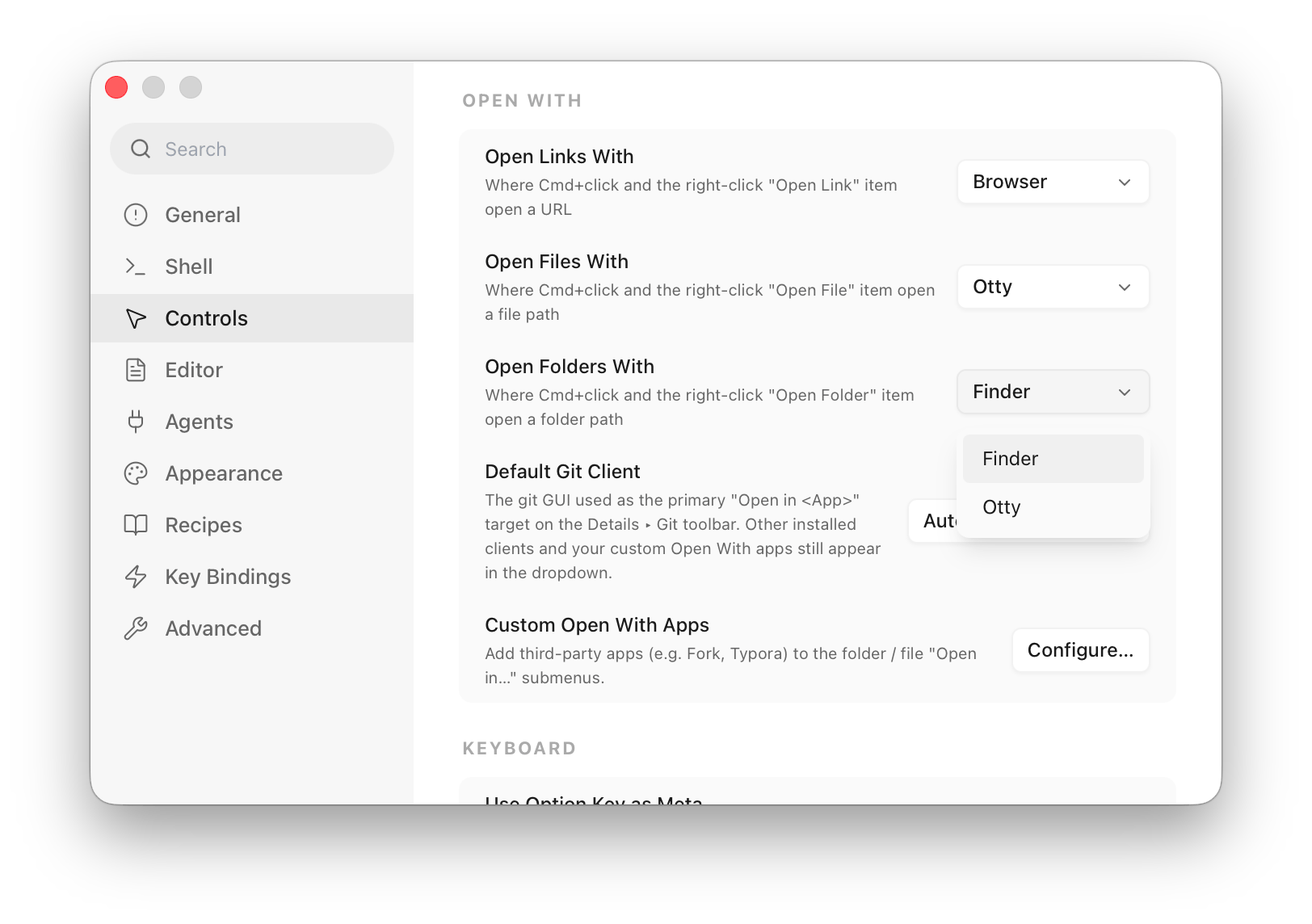
The "Open in" List
Settings → Controls → Open With → Open With Apps → Configure… holds every entry the folder / file Open in… submenus, the Details panel and the command palette offer. It starts out with the editors installed on your Mac — VS Code, Cursor, Xcode, Zed — and those are ordinary rows: remove one and it is gone from all of those menus.

- Add app picks an application — Fork, Typora, anything installed.
- Add TUI / Command takes a terminal command such as
yaziorlazygit. Choosing it opens a new tab in the target folder and runs the command there. For a file, the path is appended; write{}in the command to place the path yourself (nvim {} +1) — a command containing{}gets the path only where you put it, never appended a second time. Opening a search hit or afile.swift:42link through a TUI entry drops the line number: unlike VS Code or Zed, the command lands at the top of the file. - Add Presets puts the default editors back if you removed one and want it again.
- × removes a row.
An editor you install later is added to the list the next time Otty starts, unless you had removed it before.
The same list is reachable from the Details panel: right-click it and choose Configure Open With… (that menu also has Close Details Panel).
Config Which links are detected
Local file path is always detected.
By default Otty links any scheme:// URL — including custom app schemes like codex://, vscode://, or ssh:// — plus mailto: addresses.
Under Settings → Controls → Link Schemes, set Auto-Detect Link Schemes to Custom to restrict detection to a list you control: http(s), file, and mailto stay on, and you add only the extra schemes you want (e.g. codex, ssh).
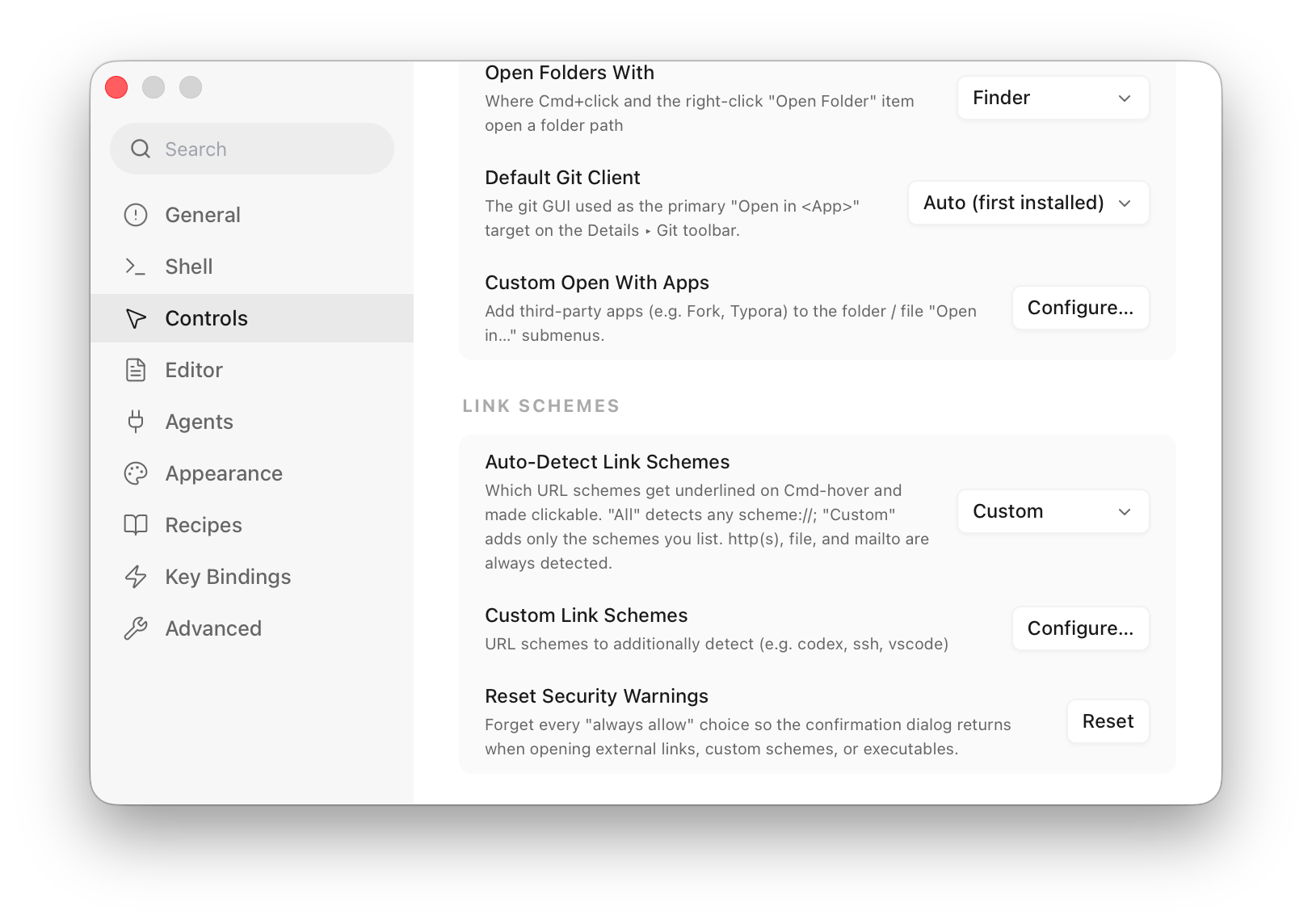
TIP
Most CLIs print links as plain text, so Otty's auto-detection is what makes them clickable. Tools that emit proper OSC 8 hyperlinks are always underlined regardless of this setting.
Security
Opening a non-standard scheme, or executable binaries still asks for confirmation the first time; the Reset Security Warnings button (in the same Link Schemes card) clears every remembered "always allow" choice so those prompts return.
Advanced Configuration
link-cmd-click = open                 # open | copy | nothing
link-cmd-shift-click = reveal-finder  # reveal-finder | open-system-default
link-detection = on                   # on | off — turn off if interfering with TUI mouse
See also
- Open Quickly — find a file by name, plus every other filter.
- Search in Files — grep a folder's contents in a tab.
- Drag and Drop — moving files between panes, tabs, and apps.
- Hint Mode — open detected links from the keyboard.
- Window, Tab and Split — where panes live.