Appearance
Unicode and Text Styles
Otty renders text on the GPU — Metal on macOS, DirectX 12 on Windows — caching each glyph so it's rasterized once and reused. This page covers what Otty can put on screen: Unicode and emoji, ligatures, Nerd Font icons, the full set of text styles, and color depth.
Unicode support
Otty handles the whole Unicode range (U+0000–U+10FFFF), not just the Basic Multilingual Plane:
- Combining marks stacked over a base glyph (accents, diacritics, Hangul jamo).
- Wide East Asian characters — CJK ideographs, kana, and full-width forms each occupy two cells, so column alignment in tables and TUIs stays correct.
- Right-to-left text (Hebrew, Arabic) reads correctly out of the box — each line is reordered with the Unicode bidirectional algorithm (the Bidirectional text setting, on by default), while pure left-to-right content is left untouched. See BiDi / RTL Text for details.
Wrapped CJK lines
When a wide CJK character cannot fit in the last column, some line editors (zsh) pad that column with a reverse-video space and wrap the character to the next row. That pad is a real cell, so it shows up as a small solid block stranded at the right edge of a wrapped line.
Settings → Advanced → All Settings → strip-cjk-wrap-pad (off by default) hides that one isolated cell so the wrapped line looks clean. For Otty's bundled zsh it also tells zsh not to emit the pad — still overridable from your own .zshrc. Off renders it verbatim, the same block tmux, Ghostty, and Terminal.app show.
It only ever affects a lone reverse-video space at a soft-wrap boundary; genuine reverse-video bars are untouched.
Emoji
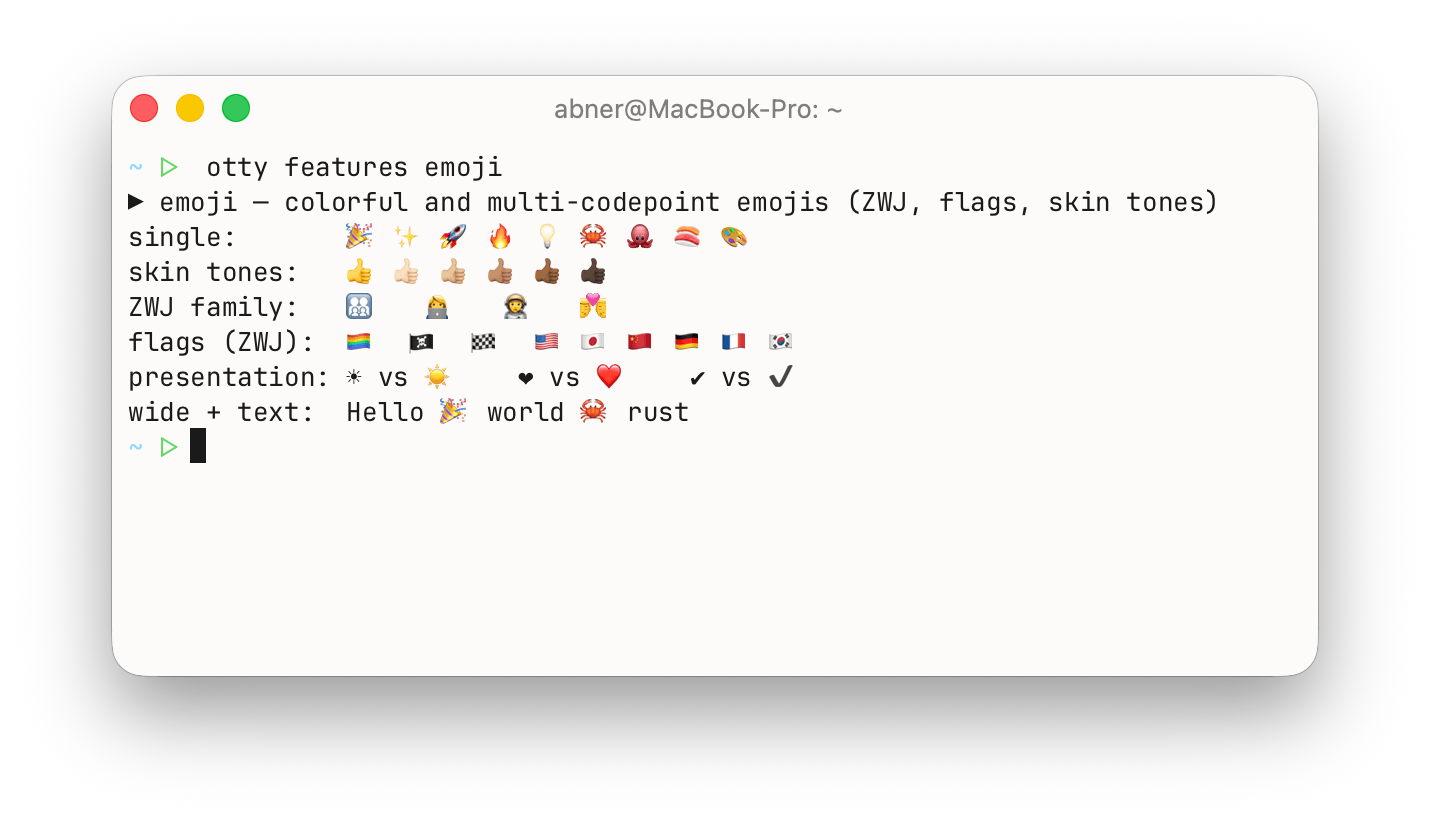
- Color emoji render in full color using the system emoji font (Apple Color Emoji on macOS, Segoe UI Emoji on Windows).
- Multi-codepoint sequences collapse into a single glyph the way they're meant to: ZWJ families (👨👩👧👦), profession and skin-tone modifiers (👋🏽, 🧑💻), and flags (🇯🇵) are drawn as one image across two cells.
- Variation selectors are honored, so a character can request its text (▶︎) or emoji (▶️) presentation and Otty picks the right glyph.
Ambiguous-width characters
A handful of Unicode blocks are classified East-Asian-Ambiguous — they're one cell wide in a Latin context but two cells wide alongside CJK text. Getting this wrong leaves trailing whitespace or chops a glyph in half.
By default Otty widens the enclosed alphanumerics block (① ② ③ ⒶⒷ ⓐⓑ) to two cells, which fixes the most common misalignment on macOS without disturbing arrows, box-drawing, or Powerline glyphs.
You can widen more blocks — number forms, math operators, technical symbols, dingbats, arrows, geometric shapes — from Settings → Advanced → Widen East-Asian-Ambiguous Blocks. Only enable a block if your font actually draws it at two cells of advance; otherwise you'll see a gap after the glyph. Changes apply to newly opened tabs.
Ligatures
For fonts that ship them (Fira Code, JetBrains Mono, Iosevka, Cascadia Code, …), Otty shapes programming ligatures so sequences like =>, !=, >=, and -> join into a single glyph. By default ligatures fire only on symbol runs, leaving letters and digits untouched.
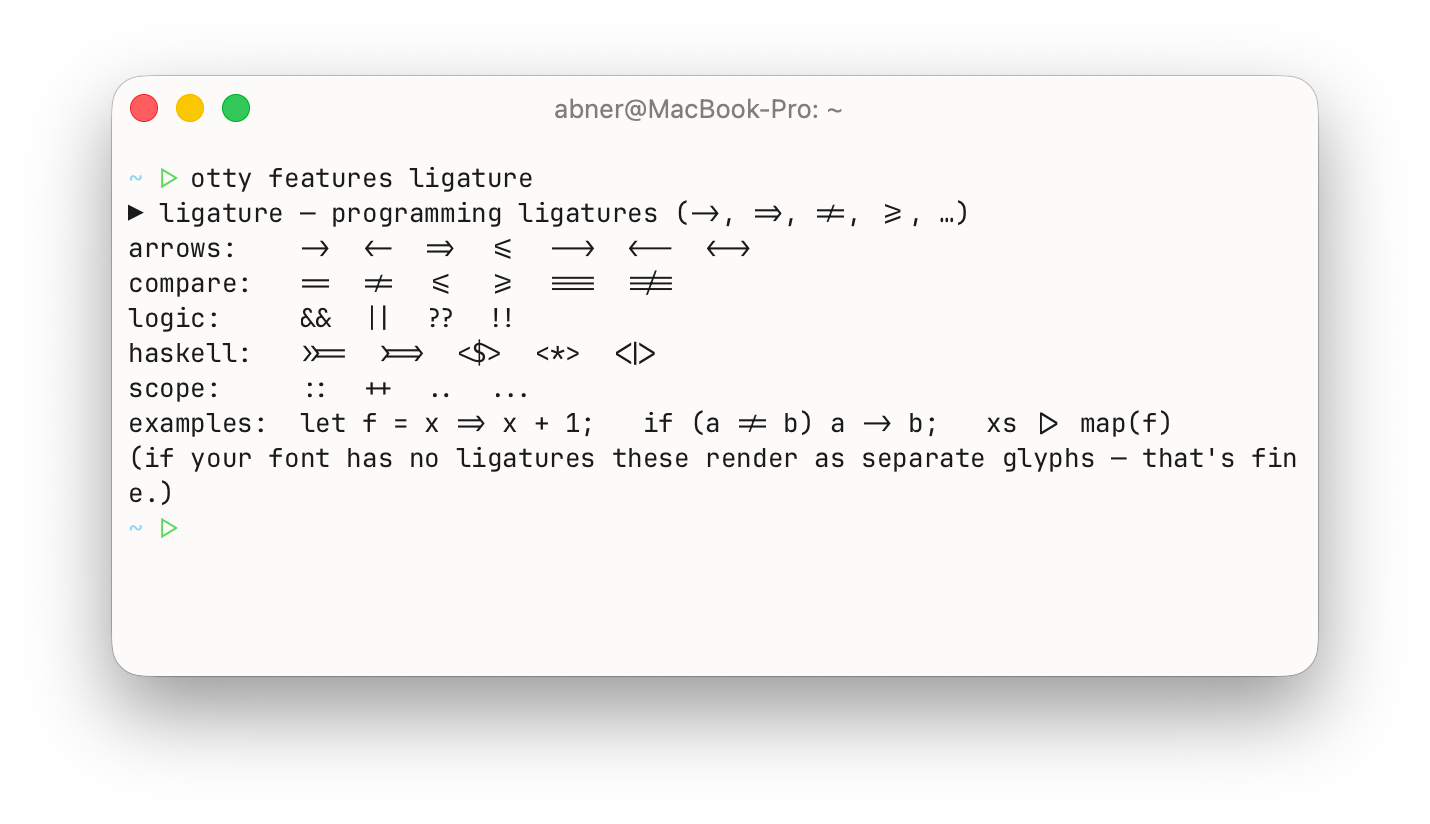
Choose the ligature level — none, standard/contextual, or discretionary — from Settings → Appearance → Text. See Ligatures on the Fonts page for the level comparison and samples.
Icons (Nerd Font)
Otty ships with an embedded Nerd Font that is used automatically for icon glyphs in the Private Use Area — no extra font install or configuration required. Both icon families are covered:
- Classic Nerd Font icons, in the Basic Multilingual Plane's Private Use Area: Powerline separators, file-type and Git-status symbols, and the glyphs in prompts like Starship and Powerlevel10k.
- Material Design Icons — the large
nf-md-*set that lives in a supplementary Private Use plane — including the folder, file, and device glyphs that modern file managers such as yazi, lsd, and eza put in front of every entry.
An icon a font draws wider or taller than a single cell is scaled to fit and centered, so a folder or open-folder glyph stays crisp and correctly proportioned instead of being squeezed into a bar — including on a file manager's highlighted or hovered row.
If you've installed your own patched Nerd Font, add it as a fallback font and it takes precedence for those codepoints.
Text styles
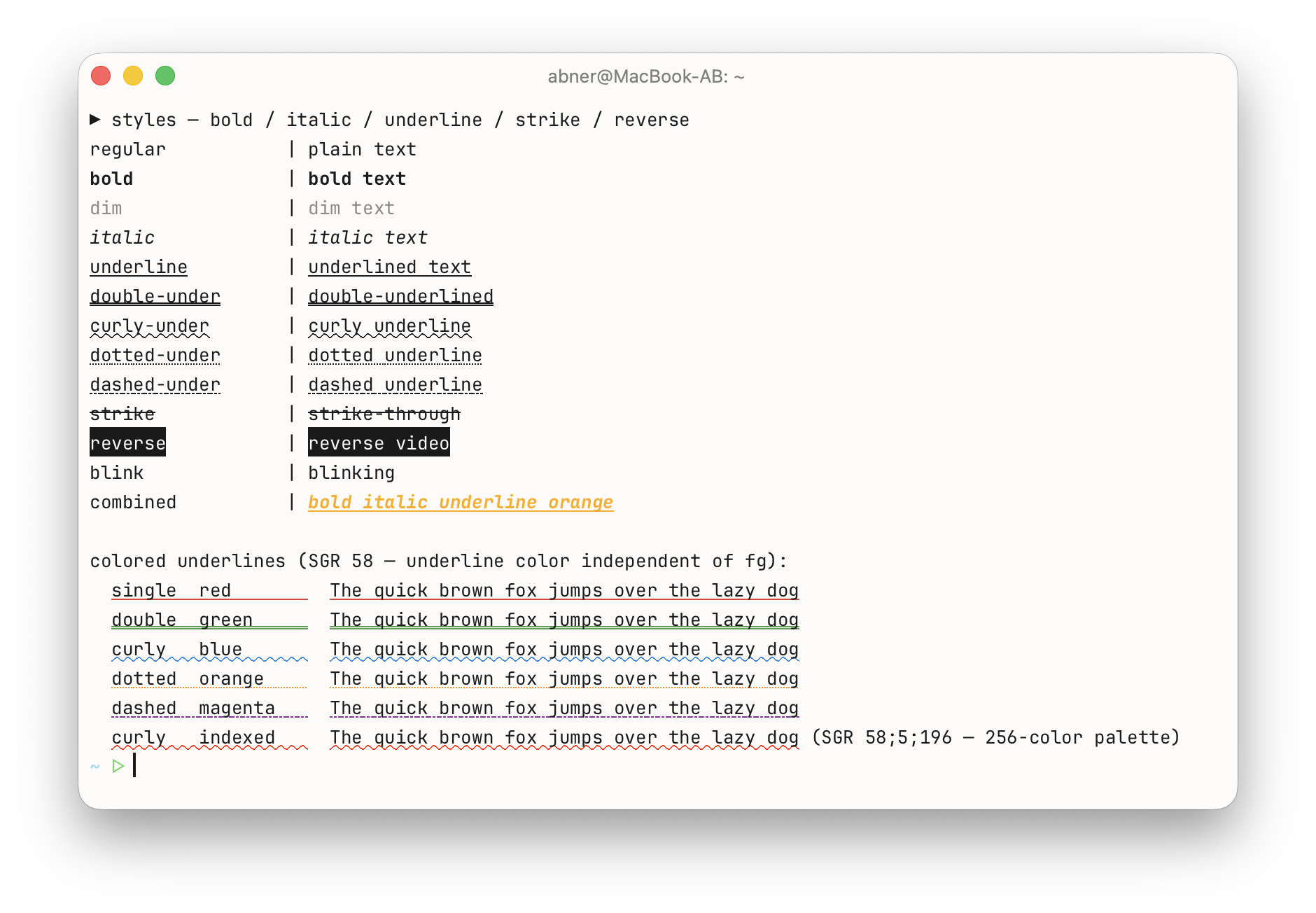
Programs running in the terminal request styled text through standard SGR escape sequences. Otty renders the complete set:
| Style | What it does |
|---|---|
| Bold | Heavier weight, using the font's real bold face. |
| Italic | Slanted, using the font's real italic face. |
| Dim (faint) | Reduced intensity for de-emphasized text. |
| Underline | Single, double, curly (undercurl), dotted, and dashed — with an underline color independent of the text color. |
| Blink | Slow and rapid blink. |
| Strikethrough | A line drawn through the text. |
| Reverse (inverse) | Foreground and background colors swap — how many tools draw selections and the cursor. |
| Color | Foreground and background color (see Color depth below). |
Underline styles
Underlines are the richest of the group — editors and language servers use the different shapes to mark errors, warnings, and hints:
| Shape | Typical use |
|---|---|
| Single | Plain underline, links. |
| Double | Emphasis. |
| Curly (undercurl) | Spell-check and diagnostic squiggles in nvim, VS Code in the terminal. |
| Dotted | Hints / info diagnostics. |
| Dashed | Warnings. |
The underline color is tracked separately from the text color, so a red squiggle can sit under normally-colored text.
Configuring how styles render
How aggressively Otty honors Bold, Italic, Underline, and Blink is adjustable from Settings → Appearance → Text — for example, faking a bold/italic face when the font lacks one (synthetic styling), or rendering blinking text steady. See Text Style on the Fonts page.
Color depth
Otty supports 24-bit truecolor (16.7 million colors), 256-color, and the standard 16-color palette. Truecolor and 256-color support are advertised to programs automatically through the TERM and COLORTERM environment variables, so syntax highlighters, ls --color, and gradient TUIs light up without any setup.
For what COLORTERM=truecolor unlocks and how to override the advertised terminal type, see The TERM Value.
Configuring text rendering
Everything above is tuned from the GUI — Settings → Appearance for fonts, ligatures, and text styles; Settings → Advanced → All Settings for ambiguous-width blocks, bidirectional text, and wrapped CJK lines. The underlying configuration keys are an advanced topic documented in Fonts and Text Rendering and the Configuration Reference.
See also
- Fonts — picking a font, sizes, weights, and the text-rendering knobs.
- BiDi / RTL Text — Hebrew, Arabic, and mixed-direction text.
- Box Drawing — analytic rendering for box characters.
- SGR Attributes — the escape sequences behind every style above.
- Images — beyond text.