Appearance
Autocomplete / Inline Suggest
Inline ghost-text and a candidate panel — driven by a Fig-compatible spec database with 700+ CLI tools shipped and Otty's on-device learning.
Trigger / Config
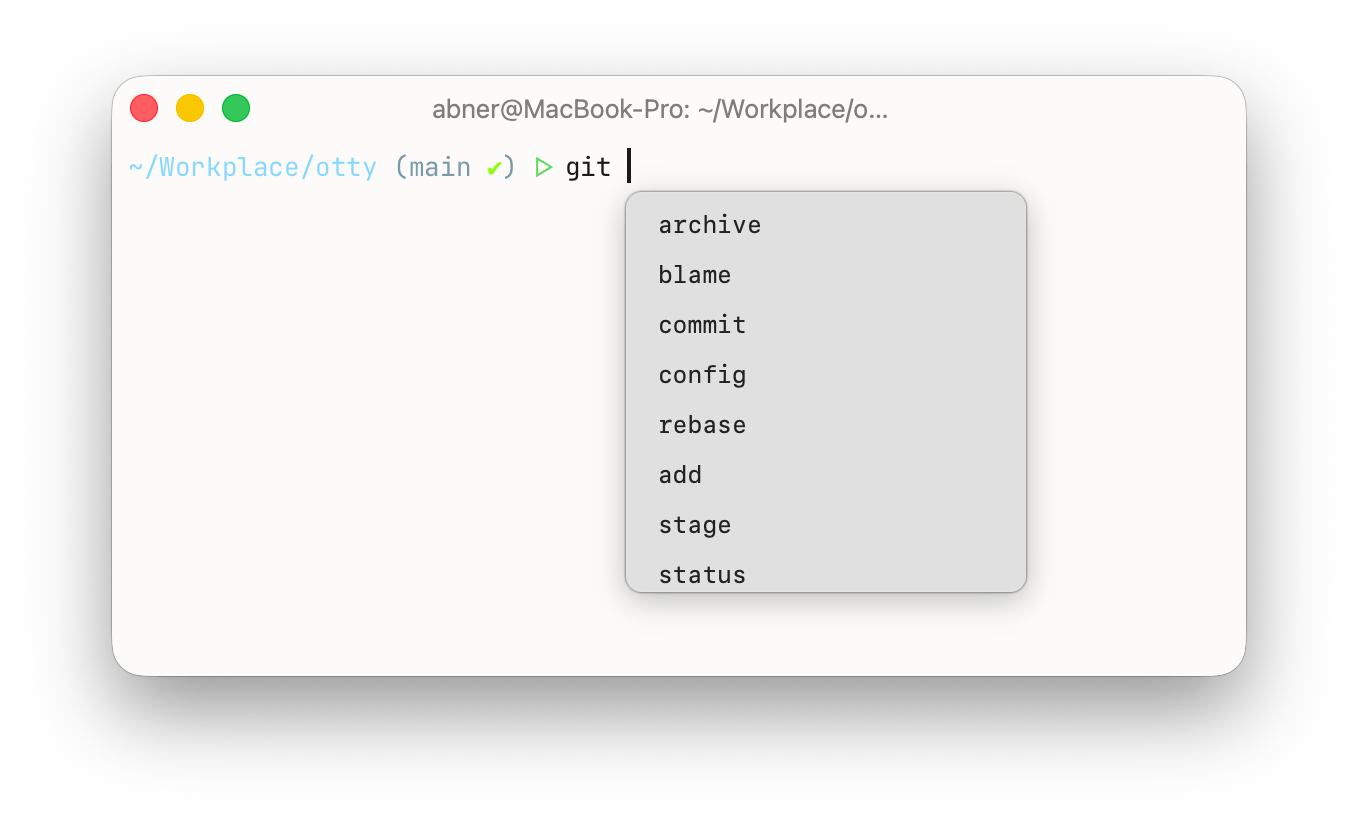
Otty watches the line you're typing at a shell prompt and offers suggestions on its own — there's no key to summon it. A moment after you stop typing, the most likely continuation appears as dim ghost text; when several completions are plausible, a candidate panel can open beneath the cursor instead.
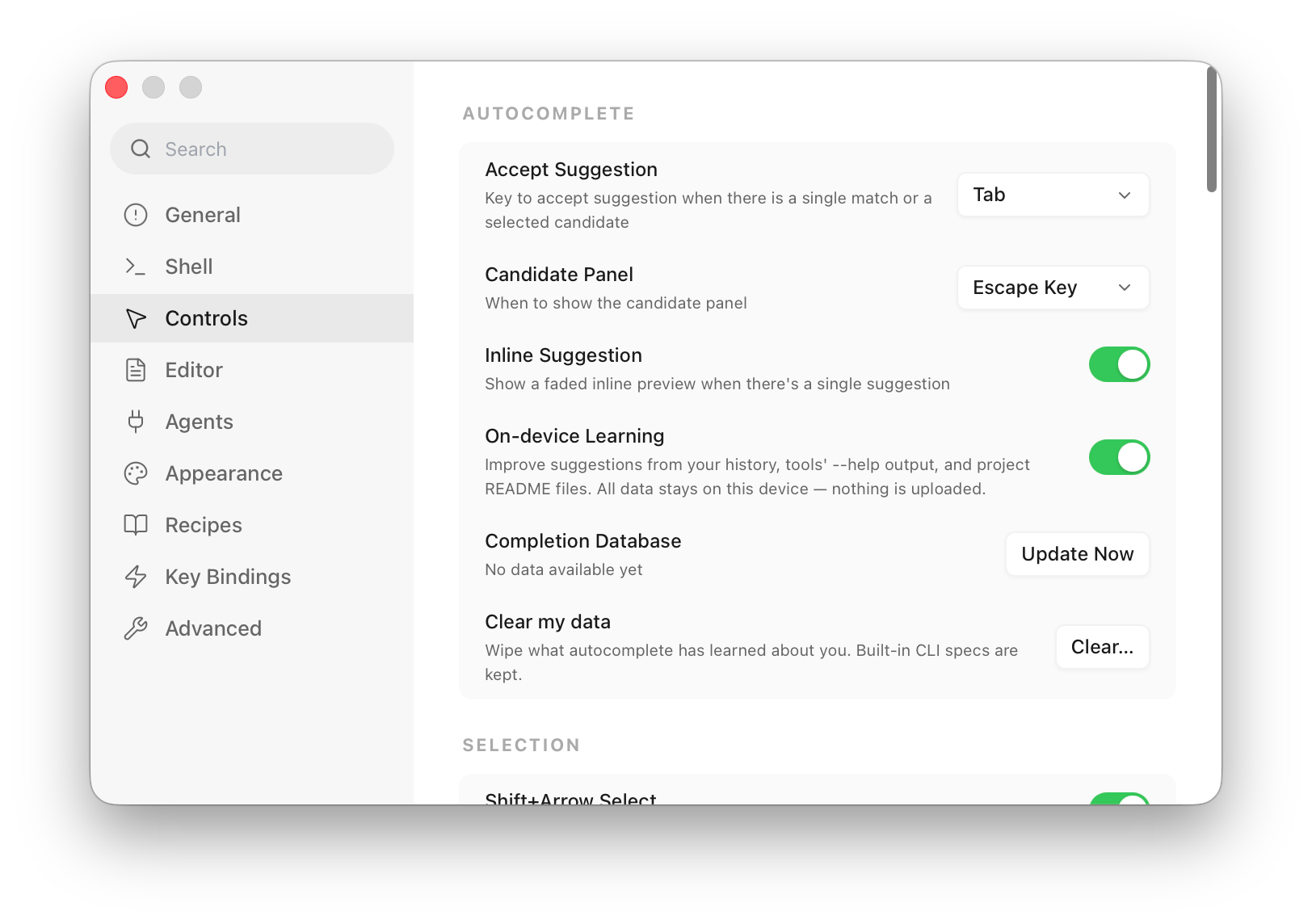
Eight autocomplete-* keys tune the behavior (full details in the Configuration Reference):
| Key | Default | What it does |
|---|---|---|
autocomplete-shortcut | tab | Key that accepts the current suggestion: tab, tab+right-arrow, right-arrow (Tab stays with your shell), ctrl+space, or disable. |
autocomplete-show-candidates | escape | How the panel opens: disable, auto (whenever there are ≥ 2 matches), escape, or option-escape (Option+Esc / F5). |
autocomplete-inline-suggestion | true | Whether to draw the faded ghost text at all. |
autocomplete-inline-provider | otty | Windows, PowerShell only: whose faded preview you see — otty, or psreadline (PSReadLine's own prediction first, Otty's when it has none). |
autocomplete-on-device-learning | true | Master privacy gate for local learning (history, --help probes, README scan). Everything stays on your machine. |
autocomplete-skip-secrets | false | Never record a command that looks like it carries a password, token or API key. |
autocomplete-history-ignore | (none) | Glob patterns for commands that are never recorded, e.g. ssh *, export *TOKEN*. |
autocomplete-description-language | system | Language of the descriptions shown next to candidates: system, english, or chinese. |
Candidate Panels and Ghost Text
Two surfaces share one suggestion engine:
Ghost text is a dim continuation drawn after your cursor when one suggestion clearly leads — the only match, or a command you run in this folder noticeably more often than the alternatives and ran most recently. When several are equally plausible they go to the panel instead, so a ghost is never a coin flip you have to read and dismiss. If the commands you've run here disagree — say nvs 22 && npx install-electron was run more often, but you've been running plain nvs 22 since — Otty previews only the next word they share (22) and lets you carry on from there. Accept it with Tab (or → when autocomplete-shortcut = tab+right-arrow; with right-arrow only → accepts, and Tab always goes to your shell's own completion). Keep typing and it shortens a character at a time; Backspace lengthens it again, the character you deleted turning dim as it goes back into the suggestion; Esc dismisses it without leaving the line. When several candidates stand behind the ghost and the panel opens on Escape, the first Esc just clears the ghost — Tab then goes to your shell — and a second Esc opens the panel.
PowerShell on Windows draws a faded prediction of its own (PSReadLine's), in the same spot. Choose whose you see in Settings → Controls → Autocomplete → Inline Suggestion: Off, Otty (the default — PSReadLine's prediction is switched off), or PSReadLine, then Otty (PSReadLine's prediction when it has one, Otty's otherwise). Either way the keys behave the same: Tab accepts the faded text you can see, the first Esc clears it without touching your line, and a second Esc opens the panel.
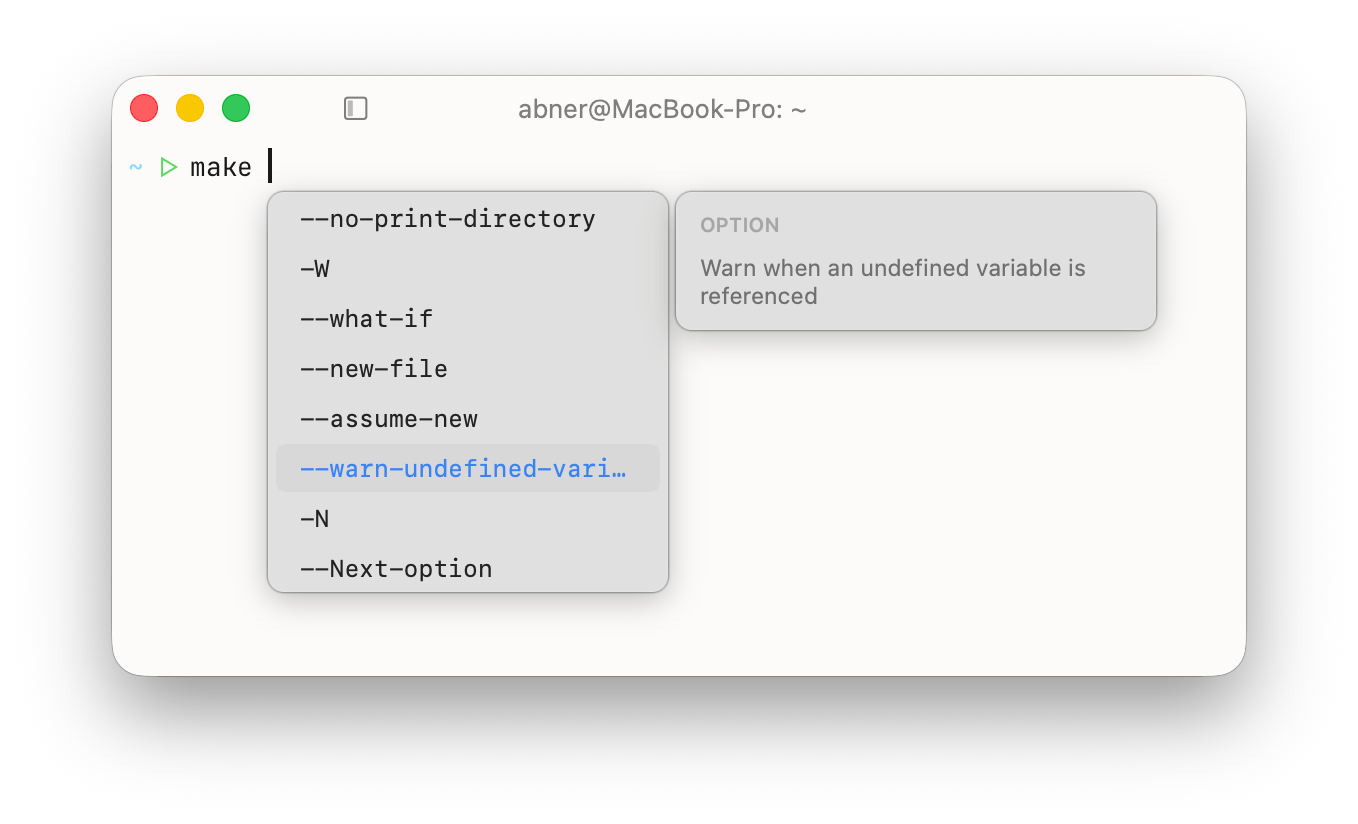
The candidate panel is a dropdown beneath the cursor for when more than one completion fits. Move with ↑/↓, accept with Return or Tab, dismiss with Esc, or click a row. Up to eight rows are visible, and a side column shows the selected item's description. Whether it opens automatically or on demand is governed by autocomplete-show-candidates.
Every row carries a kind icon so you can see where a suggestion came from at a glance — subcommand, option/flag, argument, file, folder, alias, snippet, learned command, README command, or a "did you mean…" fix.
Inline Suggest Source
Data from Fig-compatible spec
Otty bundles Fig autocomplete specs — declarative files describing CLI grammars: each command's subcommands, flags, and the arguments they take. The bundle covers 715 commands at last count (git, npm, kubectl, docker, aws, …) and ships as a single database inside the app. Refresh it from Settings → Controls → Autocomplete with the Update Now button on the Completion Database row; there is no automatic background download, and anything you've taught Otty locally is never overwritten by an update.
Recent Used
Beyond the static specs, Otty learns from what you actually run. Each command you execute is tokenized and recorded locally, then ranked by frecency — a blend of how often and how recently you've used it, with a strong boost for the current session. So git checkout surfaces the branches you switch to most, and a bare prompt offers the commands you reach for in this folder.
Commands matching your autocomplete-history-ignore globs are skipped entirely, and a command that exits 127 (not found) — or an obviously mistyped --flag — is pruned back out of history. Turn the whole thing off with autocomplete-on-device-learning = false.
Tools Otty has no spec for. For a command outside the spec database, Otty offers file and folder names once you have typed the first character of an argument — never a whole folder listing on an empty argument. It also learns from what you pass: run the tool twice in a row with nothing but plain words (mytool deploy, mytool status) and it stops offering paths for that tool; one run with a path (mytool ./build) brings them straight back. A word that already looks like a path — starting with ./, ../ or ~/ — always completes. Paths you pass to a tool often rise to the top of its list; when one clearly leads it appears as ghost text, while several matches you have never used stay in the panel rather than preview a guess. Clearing Command history under Settings → Controls → Autocomplete → Clear my data resets what it has learned.
Whole commands you've run here
Otty also remembers the complete command line of everything you run, per folder. Type any prefix of one and the rest appears as ghost text:
sh
# once, in ~/work/backend
serena start-mcp-server --transport streamable-http --port 9122 --context codex

# later, same folder — one keystroke brings the whole thing back
s
Accepting replaces the entire line, not just the word under the cursor, so a longer prefix works the same way: typing npx @d completes a remembered npx @deepseek-ai/dsh web in full.
These sit above every other suggestion, because a command you actually ran here beats a binary that merely exists on your $PATH — which is what puts your own command ahead of ssh, su, and scp when you type s. When several match, the one you run most often and most recently comes first.
They are scoped strictly to the folder: the same prefix in another project suggests that project's commands, never this one's. A command you interrupt with Ctrl+C is still remembered — that is how you get a long-running server back — while one that turns out not to exist is dropped.
Whole lines are part of On-device Learning — turning that off stops them along with everything else Otty learns. See Privacy below for what it does and does not store.
Auto correction
When a command fails at the prompt, Otty reads the error and offers the fix as ghost text on the next line — a thefuck-style "did you mean…". It recognizes the correction output of common tools (git, npm, cargo, pip, brew, rustup, and the shell's command-not-found handler), pulling out the suggested command or edit-distance match on the offending token. Accept it like any other suggestion, or just start typing to ignore it.
Run it through a package runner instead
Some commands aren't missing because you mistyped them — they're just not installed. Every ecosystem has a way to run a package anyway, and Otty knows you're reaching for one:
sh
$ wrangler secret put JWT_SECRET --env staging
zsh: command not found: wrangler

$ npx
#   ^ ghost text completes the whole thing back:
#     npx wrangler secret put JWT_SECRET --env staging
Type the runner and the arguments you already typed come back with it — no retyping, no scrolling up to copy the line. It recognizes npx, npm exec, pnpm dlx, yarn dlx and bunx for Node; uvx, pipx run, poetry run, pdm run, hatch run and rye run for Python; bundle exec and gem exec for Ruby; and composer exec for PHP. The same works for a binary that exists but isn't on your PATH — pytest missing in a Poetry project is poetry run pytest.
Half a runner is enough as long as it's unambiguous: pn finds pnpm dlx, while a bare p (pnpm? pipx? poetry? pdm?) waits for one more letter. Keep typing anything that isn't the missing command and the suggestion steps aside for the normal candidates.
Per-folder scripts
otty learn pins a command to the folder you're in. Run, inside a project directory:
sh
otty learn 'npm run deploy:staging'
otty learn './scripts/release.sh --dry-run'
The command is stored against the current directory and offered first whenever you return to that folder — handy for the long, project-specific invocations you'd otherwise dig out of history. Repeating otty learn on the same command bumps its rank. (Otty does not auto-scan package.json, Makefile, or justfile; you register exactly the commands you want.)
Otty also reads fenced code blocks from a project's README and offers those commands in the same folder, so well-documented repos get useful suggestions with no setup.
Add new binaries into autocomplete DB
Got a tool with no bundled spec? Teach Otty from its --help:
sh
otty learn ripgrepFor a bare binary on your $PATH, otty learn runs <binary> --help (falling back to -h or a help subcommand), parses the options and subcommands it finds, and writes a spec into your local completion database. Specs you add this way are tagged separately and survive app updates — a refresh of the bundled specs never clobbers them.
Disable Autocomplete / Inline Suggest
Open Settings → Controls → Autocomplete and turn off as much or as little as you like:
- Hide the ghost text — switch Inline Suggestion off. The faded inline continuation stops appearing.
- Close the candidate panel — set Candidate Panel to Disabled, so the
Esc/ Option+Esc shortcut no longer opens the dropdown. - Free up the accept key — set Accept Suggestion to Disabled if you'd rather no key ever accepts a suggestion.
- Hide credential-looking commands — switch Hide Secrets on. Commands that look like they carry a password, token or API key stop appearing in suggestions (they are still recorded, so turning it back off brings them back).
- Stop local learning — switch On-device Learning off. Otty keeps using the bundled specs but records nothing new — no argument frequencies, no whole command lines — runs no
--helpprobes, and reads no READMEs.
Switching off both Inline Suggestion and Candidate Panel disables the feature entirely — neither surface ever shows, and the bundled spec database is simply never consulted.
Privacy
Autocomplete runs fully offline. Suggestions come from a spec database bundled inside the app, so everything you type stays on your machine — Otty never sends your keystrokes, your command line, or your history anywhere to produce a completion, and there is no telemetry on what you complete.
On-device learning is exactly that: your command history, the --help output Otty parses for unknown tools, and the README commands it reads all live in a local database on your Mac and never leave it. The --help probes even run inside a network-denied sandbox, so a probed tool can't phone home either. Switch On-device Learning off under Settings → Controls → Autocomplete to stop all of it, or use Clear my data in the same place to wipe what's already been learned.
Two different things are stored, and they carry different amounts of you.
Individual arguments are recorded with secrets in mind: a value after a flag like --password, --token, or --api-key is dropped before anything is written.
Whole command lines — part of what On-device Learning records — are kept verbatim, because a command that has been edited is no longer the command you ran. A line is only useful if accepting it reproduces exactly what worked. That means a secret typed directly on the command line is stored with it unless Skip Secrets is on. The database stays on your Mac and is never uploaded, but it is on disk — the same exposure ~/.zsh_history has always had.
Five things keep a line out of sight, or out of the database entirely:
- Switch on Skip Secrets under Settings → Controls → Autocomplete. Commands that look like they carry a password, token or API key are then never written to autocomplete history at all —
--password=…,API_KEY=…, an issuer-stamped value likesk-…orghp_…, credentials inside a URL, anAuthorization: Bearerheader, andmysql -uroot -phunter2where the password is glued to the flag. It applies to commands you run from then on; anything already stored stays until you clear it. Off by default, because the test is a guess —--keycan name a sort field — and a command it refuses simply stops being suggested. If you want one of those kept anyway,otty learn '<cmd>'records it deliberately and never goes through this check. - Type a leading space. A command starting with a space is never recorded at all — the shell's own "don't remember this" gesture, and the one to reach for in the moment.
- Set History Ignore Patterns under Settings → Advanced — glob patterns like
*--token*that are skipped before anything is written. - Press Shift+Delete on a remembered line in the candidate panel to forget that one line. This is the precise one: you are looking at the command when you decide.
- Clear it in bulk with Clear my data, which lists Full command lines separately from Command history so you can drop the stored commands without losing the argument frequencies everything else ranks by.
Commands that exit 127 (not found), and obviously mistyped --flags, are pruned back out on their own.
Otty never runs the tools it completes for, either — it won't shell out to brew, git, or anything else just to fill the panel. Where it needs live data (branch names, Homebrew formulae, and the like) it reads what's already on disk: your local Git checkout, Homebrew's Formula/ directory, and so on. So completing brew install … never triggers a brew update or any package-index download.
The only time autocomplete touches the network is when you press Update Now on the Completion Database row under Settings → Controls → Autocomplete: Otty downloads the latest autocomplete db and uploads nothing in return. There is no automatic background sync — if you never press the button, autocomplete never connects.
See also
- Shell Integration — works alongside autocomplete (separate system).
- Configuration Reference —
autocomplete-*keys.