
Appearance
Outline / Jump To
Otty keeps an index of every prompt, command, and file in a pane's scrollback so you can leap straight to any of them instead of scrolling to hunt. The same index drives two views: the Jump To panel and the Outline panel. Both are powered by the prompt marks your shell already emits — you don't change your prompt.
Open it
- Jump To panel — press
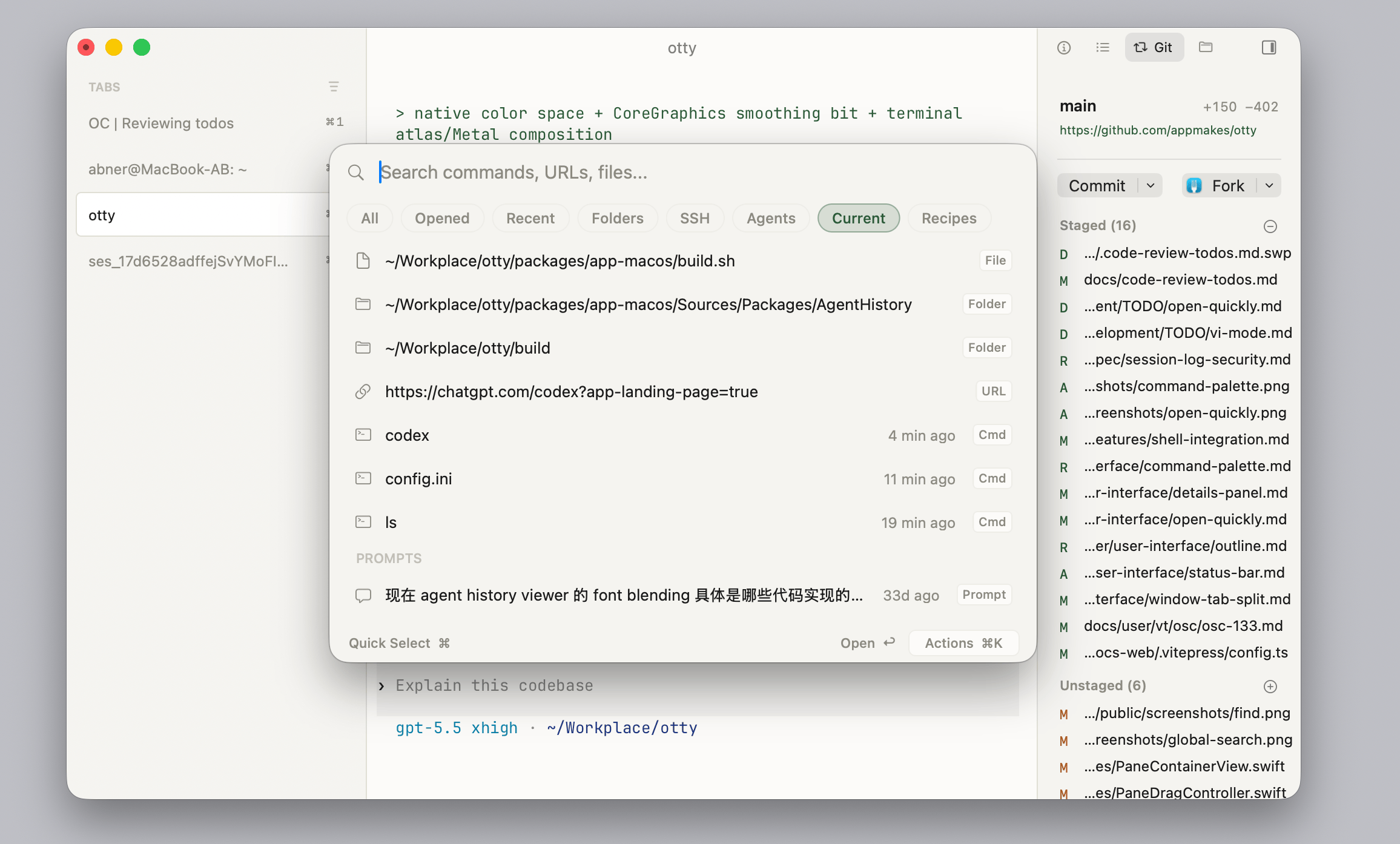
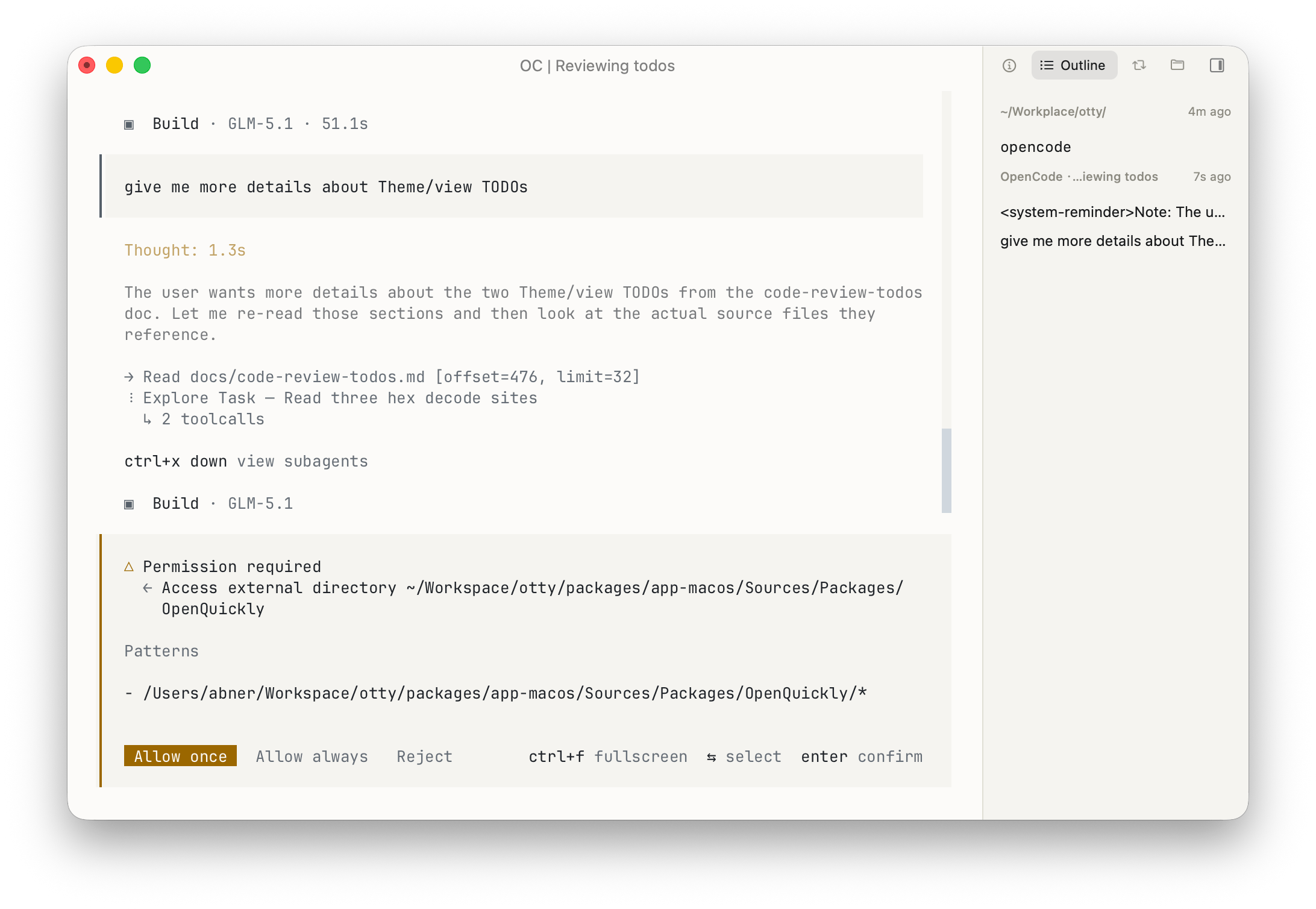
⌘J, or open the Command Palette and run Jump To. Type to filter the list, press↩to jump there, andEscto dismiss. A second⌘Jwhile it's open switches to the searchable Current-pane list (see Open Quickly integration below). - Outline panel — open the Details Panel in the sidebar and switch to Outline to keep the list docked while you work.
How it works
When Shell Integration is active your shell emits OSC 133 marks around each prompt and command. Otty uses those marks to build a per-pane index of user commands, with exit status.
- A green tick in the gutter = exit 0
- A red cross = non-zero exit
- A grey dot = still running
Open Quickly integration
⌘⇧O → switch the filter to Current to see every command in the focused pane as a searchable list. Type a fragment of any command to filter, press ↩ to jump there.
See Open Quickly.
Outline in Details Panel
You can also open outline panel in sidebar. In terminal session, it lists all commands you input. In supported code agent session, it also lists your history prompts. In markdown file preview session, it shows all headings in markdown file.
You can right click the row in outline side panel to jump there or copy text content.
See Details Panel.
About This Line
The panels above ask "where is that command?". About This Line asks the opposite: what is this line I'm looking at? Right-click any row for the command that printed it, when it ran, how it exited, and a deeplink back to that exact line.
See Shell Menu.
Requirements
- A supported shell with integration hooks installed — see Shell Integration.
- Otty does not require modifying your prompt; it injects via shell hooks.
See also
- Shell Integration — install the OSC 133 hooks.
- Find — search by text, not by command boundary.